Vprašalnik

Zavihek 'VPRAŠALNIK' omogoča:


1. Dodajanje vprašanj

Na voljo je 28 tipov vprašanj. Dodate lahko tudi tudi standardne spremenljivke za demografijo. V osnovnih in naprednih opcijah posameznega vprašanja lahko nastavite postavitev, ime, opombe, omejitve znakov, vidnost vprašanja, vrednosti odgovorov, uvrstitev vprašanja med sistemske spremenljivke, ki jih lahko uporabite pri obveščanju in pošiljanju email vabil itd.


2. Urejanje vprašalnika

Urejate lahko strukturo vprašalnika s pogoji, zankami, bloki, kalkulacijami in prelomi strani. Prav tako lahko urejate celotni vprašalnik v skrčenem pogledu, kar je priporočljivo predvsem pri obširnih in kompleksnih vprašalnikih. S pomočjo slovarja (glossary) lahko vprašanjem in odgovorom dodate tudi definicije, ki se respondentu prikažejo ob pomiku miške nad besedo.   


3. Arhiviranje vprašalnika

Mogoča je izdelava arhivskih verzij vprašalnika in restavriranje iz arhivskih datotek. Vprašalnik lahko tudi kopirate, brišete (nepovratno, razen s pomočjo administratorja) in izvozite v PDF ali RTF (Word) obliki.


4. Dodatno urejanje in preverjanje vprašalnika

Mogoče je izvajanje ponavljajočih se popravkov s klikom na ikono 'poišči in zamenjaj', dodajanje preloma strani med vsa vprašanja, preverjanje pravilnosti postavljenih pogojev (kot pomoč pri odpravljanju morebitnih napak), preštevilčenje vseh vprašanj (s tem rešimo problem podvajanja imen spremenljivk) ter razprtje oz. skrčenje vseh pogojev, blokov in zank s klikom na ikoni 'odpri vse' oz. 'zapri vse'.


5. Knjižnica vprašanj in anket

Dostopate lahko do javne knjižnice, iz katere lahko kopirate vprašanja in ankete, ter do osebne knjižnice, v katero vprašanja in ankete lahko dodajate ali pa jih iz nje kopirate.


<< Nazaj na UREJANJE

Answer Suggestions

Answer suggestions can be used with the 'Categories - Single answer' and 'Table - Single answer' question types. They are set by opening the advanced question editor by clicking on the question toolbar or on the 'pencil' icon..

We can choose between eight prepared groups of answers:

  • true;
  • agree;
  • like;
  • speed;
  • quantity;
  • no - yes;
  • difficult;
  • satisfaction.

For example, if we choose the option 'agree' and the 'Number of answers - horizontally' is set to 5, labels will be shown in the following form: 'Strongly disagree', 'Disagree', 'Neutral', 'Agree' and 'Strongly agree'.

Related content


Ranking a.k.a Sorting

'Ranking', also known as 'Sorting', is a special question type that allows the respondent to rank the answers in order of importance.

Ranking is a cognitively demanding survey question. The respondent is usually not able to rank more than 5 to 10 categories. It also has no major advantages compared to the rating scale (table) alternative (no possibility to calculate averages, variances, multivariate analyses, comparisons, etc.). Ranking is mainly used in situations where we want an exact order (in the case of a rating scale, several categories may have the same rating). Such situations are encountered in shopping decisions and other decision problems.

When using the 'Ranking' question type, the survey author can choose between the following sorting types in the settings:

  • Relocation, where respondents relocates a certain number of options from left to right;
  • Numbering, where respondents select a number next to each option in a drop-down list;
  • Moving, where respondents move the options vertically;
    Image hotspot, where respondents rank predefined areas in an image. 

It is also possible to set the number of responses that the respondent can rank.

Example of a survey: Please rank colors according to your fondness for the colours


The functionality is available for users of the 2KA and 3KA packages for individuals, and for users of the business packages for groups.


Related content


Display the List of Open Answers in the Survey

When editing the questionnaire in the ‘EDIT’ – ‘Questionnaire’ tab, you can edit the properties of the inserted ‘Text’ question type in the 'Edit question' window (on the right side). One of the functionalities is the ability to view respondents' previous answers.

Click on the 'Edit question' – 'Advanced' tab to find the Properties section, and tick the box next to the 'List of previous answers under the question' option. By enabling this setting, the answers of previous respondents who have already completed the survey will be displayed in the field below the selected text question.

A list of previous responses is visible to anyone who has access to the survey, but only includes up to 30 of the latest answers. By clicking on the 'More' option, you can request a display of all of the responses that were given so far.

Display the list of open answers in the survey >>


Related content


Visual Analog Scale

You can include the 'Visual analog scale' question type in the questionnaire, which can be found among the layout formats for the 'Categories - Single answer' question type.

The visual analog scale (VAS) allows you to display the answers on a scale in the form of visual responses (emoticons).

You can set up a VAS question by inserting a 'Categories - Single answer' question type in the questionnaire. In the question settings on the right-hand side, in the 'Basic' tab, under the 'Layout' setting, select the 'Visual analog scale' option.

You will then see the 'Number of answers' setting in the 'Answers' segment of the settings, where you can choose between 2 and 7 answers.

Example of a survey using the Visual Analogue Scale >>


Related content

Import Text - Copying Text Into 1KA

The 'Import text' option is located in the interface for creating a new survey. 

The interface has basic information about the survey at the top, where you can name the survey and save it in a folder (if you have enabled the folder display). Below the basic settings of the new survey, there are two fields that allow you to enter and preview text.

The text of the questions and answers can be typed or pasted in the box on the left and a preview of the questions (1KA question layout) is shown on the right.

When copying or pasting text, a few rules apply:

  • There must be an empty line between the questions;
  • For each question, the answer categories must be on their own line;
  • In the case of a table, each sub-question of the table is on its own line;
  • Using this interface, you can only import 'Categories - Single answer' and 'Text' (open question) question types into 1KA.
  • Other question types can be entered as 'Categories - Single answer' and subsequently changed (e.g. to 'Categories - Multiple answer', 'Table', etc.). 

Clicking on 'Next' will open the questionnaire in the 'EDIT' - 'Questionnaire' tab, where you can further customise or modify each question by clicking on the question and editing it accordingly in the question editor on the right hand side, where you can select a different question type.

Editing Answer Values

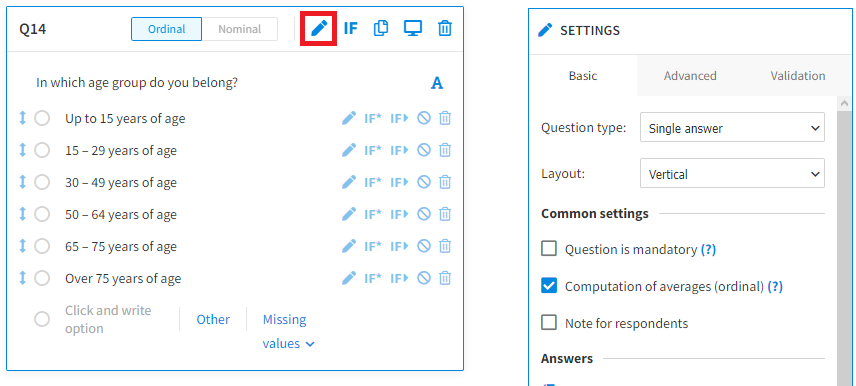
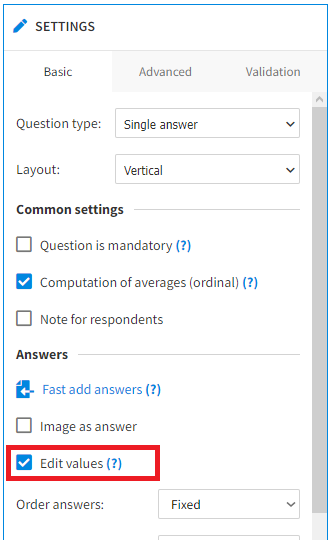
When editing a questionnaire in the ‘EDIT’ – ‘Questionnaire’ tab, the survey editor can edit and modify the answer values. Answer values can be edited by clicking on the question toolbar or the pencil icon, which will open the question settings on the right-hand side.

Within ‘Answers’, select the option ‘Edit values’. On the left side of the answer categories in the question, the answer values will now be displayed, which you can edit.

By default, response values are sorted in ascending order, starting with 1. Values can also be sorted in descending order (by selecting the 'Sort responses:' 'Descending' setting). 

The values of the answers can be changed. The following rules apply: 

  • Values must not be repeated (except if the Quiz module is enabled, which is only available for users of the 2KA and 3KA packages for individuals, and for users of the business packages for groups.);
  • Only whole numbers (without decimals) may be used;
  • The values -1, -2, -3, -4, -5, -6, -96, -97, -98, -99 are reserved to indicate missing values and must not be used as values for other answers.

Some of the functionalities described are only available for users of the 2KA and 3KA packages for individuals, and for users of the business packages for groups.


Related content

How to Repeat the Title Bar in a Table

If you have a table with a large number of items (sub-questions), it is advisable to repeat the title bar (header row). To do this, create a table question first: in the 'EDIT' - 'Questionnaire' tab, select your desired table type from 'All Question Types' in the menu on the left or via the 'Add question' button below the questionnaire.

Once the table is set up, the question settings will open on the right-hand side. In the 'Answers' section, there is a setting called 'Repeat header row'. In the drop-down menu, you can choose to repeat the title bar every 5, 10, 15 or 20 rows.

Example of a 20-item survey (sub-questions) and a repeat of the header row every 5 lines >>


Related content

Adding Editorial Access on 1KA.arnes.si

As on www.1KA.si, you can also assign editorial access to the survey to other users on 1KA.arnes.si. General instructions on how to grant access to the survey to another user that apply to all 1KA installations and domains are described here.

When adding editors to the survey on 1KA.arnes.si, keep in mind that you can only grant access to users who have the option of accessing AAI services, which allows them to log in to 1KA.arnes.si.

Users with administrator status can grant access to the survey to users who haven't registered on 1KA.arnes.si yet, which will then receive a notification of the granted access to the email address provided by the administrator. Please note that if the user to whom you have granted access to the survey does not have an AAI identity, they will not be able to log in to 1KA.Arnes.si.

If you want to give a non-AAI user access to the survey, you can provide the user with:


File Upload

In the 'EDIT' - 'Questionnaire' tab, you can also insert the question type 'File upload' in your survey, where the respondent can upload their file to the survey. Open the menu on the left side or click on the "Add question" button at the bottom of the questionnaire, then select 'File upload' from the 'All Question Types' drop-down under 'Standard Input'. Enter the text of the question and adjust the settings if you wish.

Additional restrictions for respondents when uploading a file:

  • the maximum allowed size of a file uploaded by the respondent is 16 MB;
  • allowed file types are: "jpeg", "jpg", "png", "gif", "pdf", "doc", "docx", "xls", "xlsx", "ppt", "pptx", "zip", "rar", "rds", "rdata", "rmd", "qmd";
  • a maximum of 4 input fields is allowed in an individual question, i.e. a maximum of 4 files that the respondent can upload for one question.

The respondent can remove the file they uploaded and upload another or leave it blank. In analysis and data, the file is saved as a link (URL) to the file. The survey editor has the option to edit the link (delete or replace it).

Related content

1KA is free to use for basic users