

Vprašalnik

Zavihek 'VPRAŠALNIK' omogoča:


1. Dodajanje vprašanj

Na voljo je 28 tipov vprašanj. Dodate lahko tudi tudi standardne spremenljivke za demografijo. V osnovnih in naprednih opcijah posameznega vprašanja lahko nastavite postavitev, ime, opombe, omejitve znakov, vidnost vprašanja, vrednosti odgovorov, uvrstitev vprašanja med sistemske spremenljivke, ki jih lahko uporabite pri obveščanju in pošiljanju email vabil itd.


2. Urejanje vprašalnika

Urejate lahko strukturo vprašalnika s pogoji, zankami, bloki, kalkulacijami in prelomi strani. Prav tako lahko urejate celotni vprašalnik v skrčenem pogledu, kar je priporočljivo predvsem pri obširnih in kompleksnih vprašalnikih. S pomočjo slovarja (glossary) lahko vprašanjem in odgovorom dodate tudi definicije, ki se respondentu prikažejo ob pomiku miške nad besedo.   


3. Arhiviranje vprašalnika

Mogoča je izdelava arhivskih verzij vprašalnika in restavriranje iz arhivskih datotek. Vprašalnik lahko tudi kopirate, brišete (nepovratno, razen s pomočjo administratorja) in izvozite v PDF ali RTF (Word) obliki.


4. Dodatno urejanje in preverjanje vprašalnika

Mogoče je izvajanje ponavljajočih se popravkov s klikom na ikono 'poišči in zamenjaj', dodajanje preloma strani med vsa vprašanja, preverjanje pravilnosti postavljenih pogojev (kot pomoč pri odpravljanju morebitnih napak), preštevilčenje vseh vprašanj (s tem rešimo problem podvajanja imen spremenljivk) ter razprtje oz. skrčenje vseh pogojev, blokov in zank s klikom na ikoni 'odpri vse' oz. 'zapri vse'.


5. Knjižnica vprašanj in anket

Dostopate lahko do javne knjižnice, iz katere lahko kopirate vprašanja in ankete, ter do osebne knjižnice, v katero vprašanja in ankete lahko dodajate ali pa jih iz nje kopirate.


<< Nazaj na UREJANJE

Granting Survey Access to 1KA Helpdesk

Protecting user data is one of 1KA's top priorities. Access to data is limited to the author (editor) of the survey and additional co-editors, which are added by the author of the survey.

1KA's helpdesk and the website administrator of www.1KA.si do not have access to surveys and data without the explicit consent of the user.

In case the user requires assistance from 1KA’s administrators, the user must grant temporary access to 1KA's helpdesk (until the issue is resolved). Despite granted access, administrators are still committed to the highest standards of privacy protection, as defined in the Terms of Use.

Each survey has an icon in the top left corner which enables you to grant access to 1KA's helpdesk and administrators. You have to click 'Grant access to help centre'.
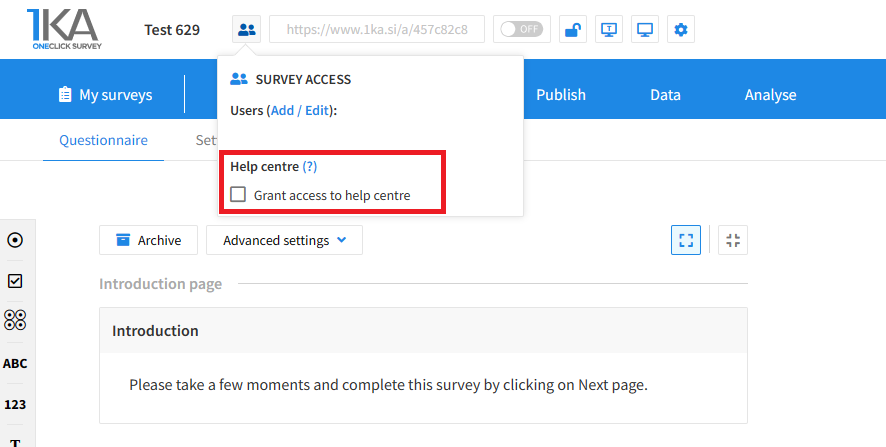
Grant access to help centre
 

The author can add co-editors in the tab 'EDIT' – 'Settings' – 'Editor access'.

Related content

Calculations

The video guide shows how to use the calculation function in One Click Survey.

It can be used in various quizzes and tests, where we are interested in the score (e.g., number of points), based on the value of individual answers.

1KA Survey Import

This video guide shows you how to import the survey and data into the 1KA tool. The functionality is most often used when either transferring a survey from one installation to another version of the 1KA installation or when transferring a survey from one user account to another.

The following should be considered when transferring:

  • When copying the survey, not all advanced settings (e.g., validations) are transferred, the survey is not activated, etc. After downloading, therefore, make sure that all settings are the same as on the original.
  • The original version of the survey and a copy of the survey do not have the same URL. In case the original version of the survey is still active, you have 2 options:
    • You change the link to the survey on the pages where you published the survey (if you sent e-mail invitations, you must send the invitations again if you want the data to be collected in a new copied database);
    • You do not download the survey or data until you have finished collecting the data. Otherwise, you will not have new entries on the copy of the survey.

Two-Factor Authentication

The video guide shows how to enable a two-factor authentication in the One click survey application, which means that when logging in, in addition to the selected password, you also need to enter a special code, which you obtain through a separate code-generating application (Google Play for Android or App Store for iOS).

1KA is free to use for basic users



