

Vodič za uporabnike

Granting Survey Access to 1KA Helpdesk

Protecting user data is one of 1KA's top priorities. Access to data is limited to the author (editor) of the survey and additional co-editors, which are added by the author of the survey.

1KA's helpdesk and the website administrator of www.1KA.si do not have access to surveys and data without the explicit consent of the user.

In case the user requires assistance from 1KA’s administrators, the user must grant temporary access to 1KA's helpdesk (until the issue is resolved). Despite granted access, administrators are still committed to the highest standards of privacy protection, as defined in the Terms of Use.

Each survey has an icon in the top left corner which enables you to grant access to 1KA's helpdesk and administrators. You have to click 'Grant access to help centre'.
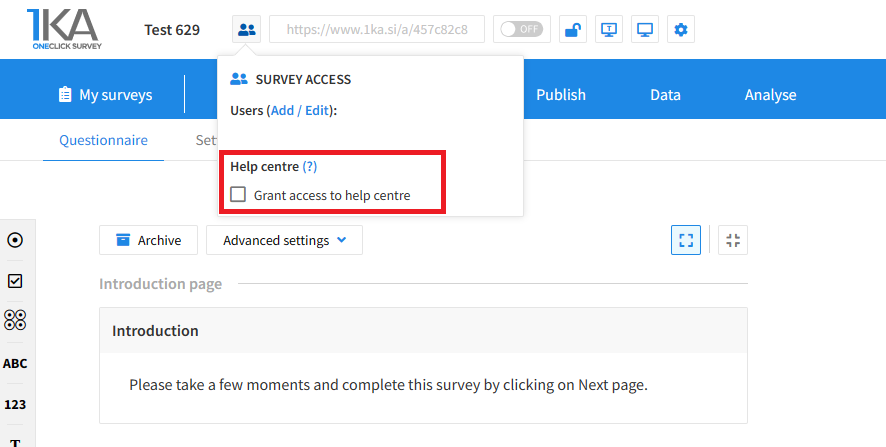
Grant access to help centre
 

The author can add co-editors in the tab 'EDIT' – 'Settings' – 'Editor access'.

Related content

Transfering a Survey Between Different 1KA Domains

To transfer the survey from www.1ka.si to 1ka.arnes.si and vice versa (or between two virtual domains or 1KA installations), follow the procedure below:

  1. Open the survey you wish to transfer
  2. Open the ‘EDIT’ – ‘Archive’ tab.
  3. Select the desired option from the menu on the left under 'Export to File (.1KA)':
    • Questionnaire: export a blank questionnaire, without answers;
    • Questionnaire and data: export the questionnaire with the respondents' answers.
  4. Click on the 'Export' button to save the file with the extension .1ka to your computer.

     
  5. Once you have saved the file, log in to the domain where you want to download the survey.
  6. Go to the 'My Surveys' tab and click 'Create Survey'.
  7. Select '.1ka file import' from the menu on the left.
  8. Click on the 'Choose File' button and search for the saved .1ka file on your computer.
  9. Click on the 'Next' button and a copy of the survey you wanted to transfer will be created from the archive file. If you have exported the questionnaire and the data, the data (respondents' answers) will also be transferred.


When transferring a survey, mind the following:

  • Some advanced settings (e.g. validations) might not be transferred automatically, and the transferred survey will start out as inactive by default. After transferring, please check that all settings in the transferred survey are the same as in the original.
  • The original version of the survey and the transferred copy of the survey do not have the same URL. In case the original version of the survey is still active, you have 2 options:
    • Replace the link to the survey on the pages where you published the survey (if you sent e-mail invitations, you need to send the invitations again if you want the data to be collected in the new copied database).
    • Transfer the survey and data only once you have finished collecting the data. Otherwise you will not have any new entries in the transferred the copy of the survey.
Related content

Calculations

The video guide shows how to use the calculation function in One Click Survey.

It can be used in various quizzes and tests, where we are interested in the score (e.g., number of points), based on the value of individual answers.

1KA is free to use for basic users



