Google Sign In

Question types
In this guide you will find the different types of questions that the 1KA tool offers for collecting information from your respondents. 1KA allows you to use a wide range of question types, from text questions to table and picture questions. Below you will find first a list of the different types of questions, followed by descriptions of each and examples.
Clicking on a particular item from the list will take you to the desired content.
- Text Question Type
- Date Question Type
- Double Grid Table Question Type
- Email Question Type
- Categories - One Answer (Drop-Down Menu) Question Type
- Categories - Single Answe Question Type
- Categories - Multiple Answers Question Type
- Classic Table Question Type
- Introduction Question Type
- Ranking Question Type
- Number Question Type
- Text Table Question Type
- Number Table Question Type
- Table - Multiple Answers Question Type
- Semantic Differential Question Type
- Take a Picture Question Type
- 'Heatmap' Question Type
- Image Hotspot Question Type
- Constant Sum Question Type
- Visual Analog Scale Question Type
- Confirmation Question Type
- Slider Question Type
- Combined Table
- Dropdown Table Question Type
- Location Question Type
- CAPTCHA Question Type
- Number Table Question Type
- GDPR Question Type
- File Upload Question Type
- URL Question Type
- SN Names Question Type
- Electronic Signature
1. Text Question Type
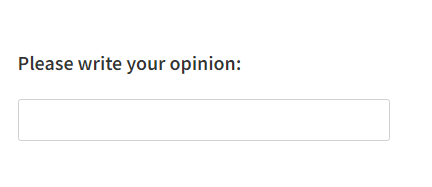
The question type 'Text' is used for entering short text messages, with an option (in settings) for entering longer texts.
The text input field can vary in width and size (from 1 to 30 lines). The maximum number of characters that respondents can enter as an answer can also be set (from 0 to 9999 characters). You can display from 1 to 4 input fields. This type of question is open-ended, which can make subsequent analysis challenging.
Example:
2. Date Question Type
The 'Date' question type allows respondents to select a date as their answer using a calendar. In addition to date selection, this question type also offers options for missing values ("Don't know", "Refused", "Not applicable", or "Other"), which can be important for data analysis.
To minimize inappropriate data, the question can be set with a lower and upper limit of characters the respondent can enter in the answer, preventing respondents from accidentally indicating they are centuries old, one year old, etc. Besides the date, settings can also enable the inclusion of birth time, and the question can be made mandatory.
Example:

3. Double Grid Table Question Type
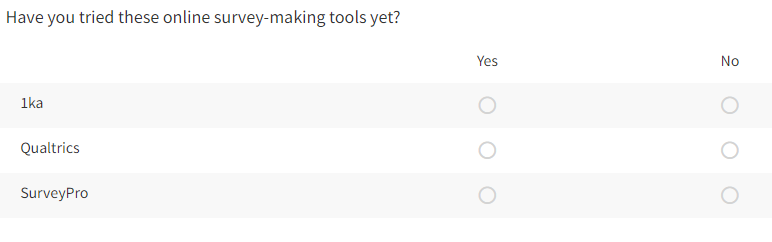
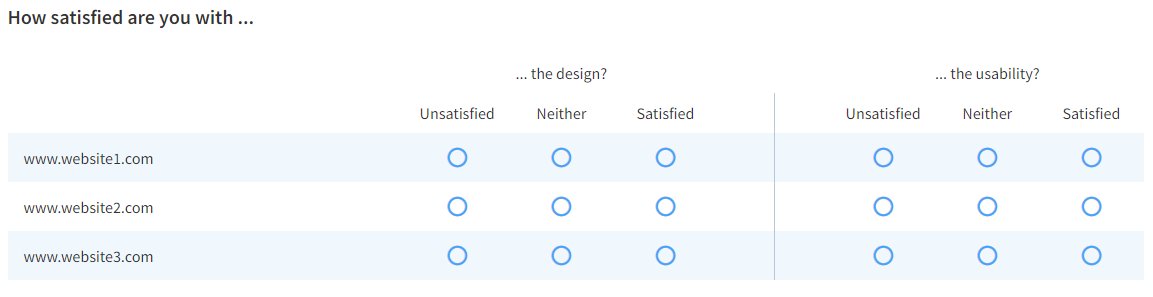
'Double Grid' question type allows respondents to select two criteria, located in the head of the table, against which respondents rate the items or topics located on the left-hand side in table rows. A double table is the most convenient way to display questions where different topics have the same possible answers.
An example of such a question could be satisfaction with a website. For example, we can get an insight into user satisfaction with design and usability for several different websites at the same time.
4. Email Question Type
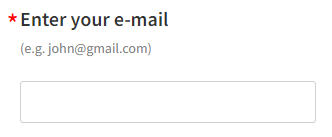
The 'Email' question type is a type of text question tailored for entering email addresses. In addition to the email entry field, this question type also offers options for missing values ("Don't know", "Refused", "Not applicable", or "Other"), which can be important for data analysis.
For the Email question type, you can set a soft or hard warning to remind respondents to enter their email, or you can ensure that the question is mandatory.
In the settings, you can change the appearance of the text entry window. You can also add a character limit for respondents' entries, as we know that each email requires at least a few characters (@gmail.com) to avoid overly long responses.
Example:
5. Categories - One Answer (Drop-Down Menu) Question Type
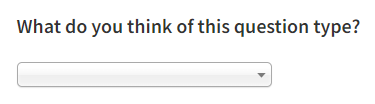
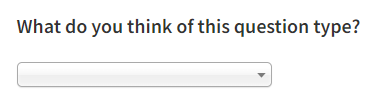
By using the 'Categories - one answer' (drop-down menu) type of questions, we enable the respondents to choose one answer between several possible answers (categories). The answers are presented in the form of a drop-down menu instead of buttons. It is advisable to consider the possibility that we did not anticipate all possible responses/answers and, if necessary, add the category 'other' to the question, but with this type of question we can not enable the answer 'other' semi-open type in order for respondents to write their answers.
6. Categories - Single Answer Question Type
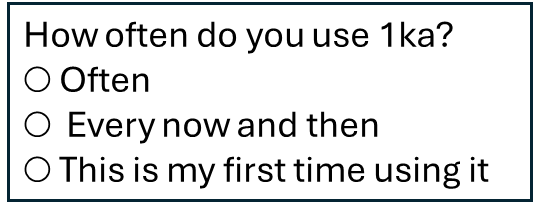
This is a categorical question type where respondents select 1 possible answer from predefined categories.
If there is a high likelihood that we have not anticipated all the possible answers from respondents, we can add the category 'Other' (and follow the methodological recommendation Unsuitable use of open-ended questions). This results in a semi-open-ended question type, which allows respondents to enter any answer they wish if they do not identify with any of the predefined categories. In this case, the analysis can be a bit more complex as the descriptive answers have to be recoded (e.g. 'apple', 'apple' and 'apples' recoded to the same value).
Similarly, 'missing values' such as 'Don't know', 'Rejected, 'Not applicable' and 'Other' can be added. Caution is advised when using these responses, as also described in the methodological recommendation Incomplete response options.
Below we describe some additional question functionality and settings:
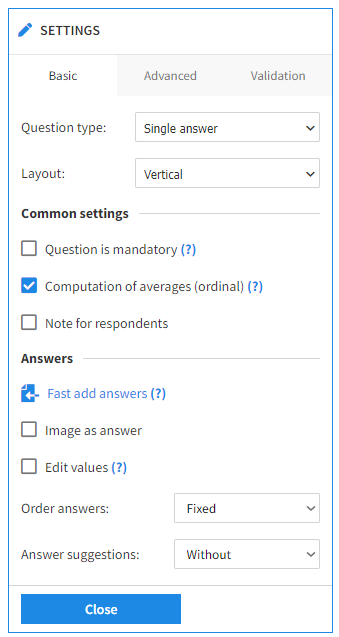
Basic settings:
Layout:
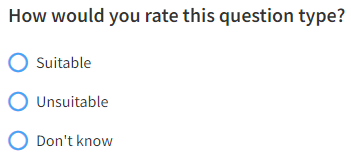
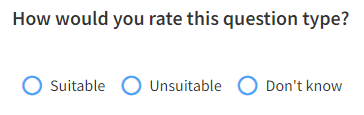
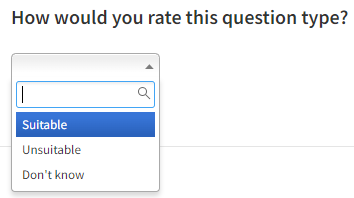
The 'Categories - Single Answer' question type offers a number of different layouts, such as:
- Vertical (default setting), where categories are listed vertically beneath the question
- Horizontal beside the question
- Horizontal below the question
- Dropdown, which is particularly useful when there is a large number of categories (e.g. more than 10 or even more than 100). When the dropdown is closed, only one category is displayed, but when the respondent clicks to open it, all categories are displayed. A possible limitation of the dropdown is that respondents do not have the possibility to enter their own answer if they do not select any of the predefined answers.

Advanced settings:
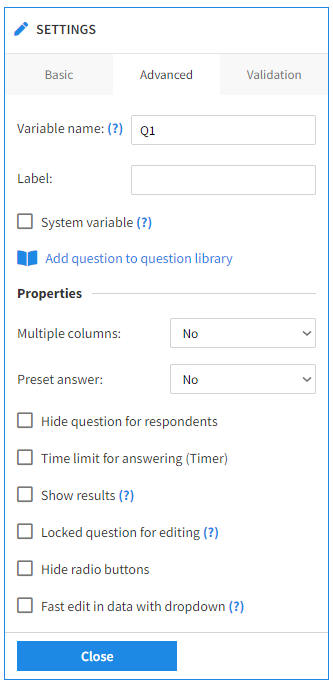
There are several options in the advanced settings, such as:
- Hide the question for respondents;
- Time limit for answering;
- Show results;
- Locked question for editing;
- Hide radio buttons;
- Fast edit in data with dropdown
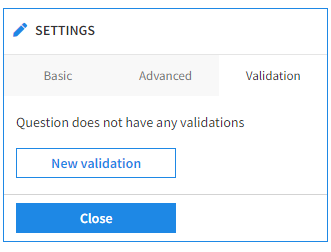
Validation:
7. Categories - Multiple Answers Question Type
In the 'Categories - Multiple answers' question type, respondents are given the option to select one or more answers from a number of possible answers (categories).
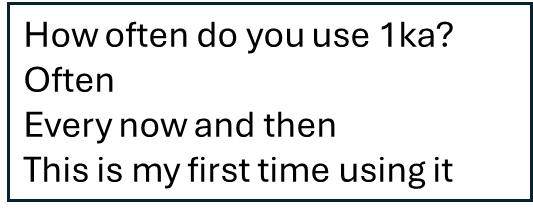
It is also advisable to consider the possibility that we have not provided all possible answers and, if necessary, to add an 'Other' category to the question (semi-open question type). This allows the respondent to write in their own answer if they do not identify with any of the predefined categories. In this case, the analysis can be a bit more complex as the descriptive answers have to be recoded (e.g. 'apple', 'apple' and 'apples' recoded to the same value).
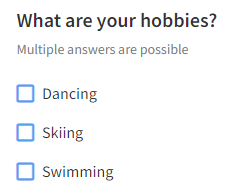
For this question type, you can choose from the following layouts:
- Vertical
- Horizontal beside question
- Horizontally below question
8. Classic Table Question Type
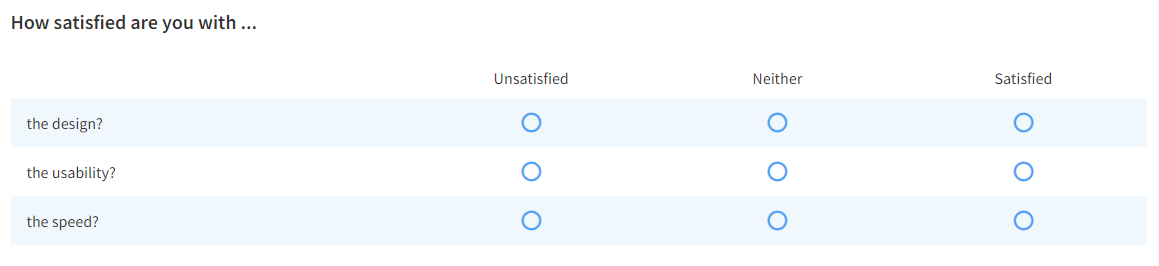
The 'Classic Table' question type allows respondents to choose one criterion from the column options, based on which they then evaluate items or topics listed in the table's rows. This type of question is the most convenient way to display questions where different topics have the same possible answers.
An example of this type of question could be user satisfaction with a website. This way, the developers of a website can gain insight into user satisfaction with the design, usability, speed, etc., all in one question.
Without this question type, you would need three separate 'Categories – Single Answer' questions to achieve the same effect, making the questionnaire creation and subsequent data analysis more difficult.
9. Introduction Question Type
'Introduction' is not a standard question type, as respondents cannot answer it. It is suitable for providing an initial address to respondents or for additional explanations and clarifications between questions.
10. Ranking Question Type
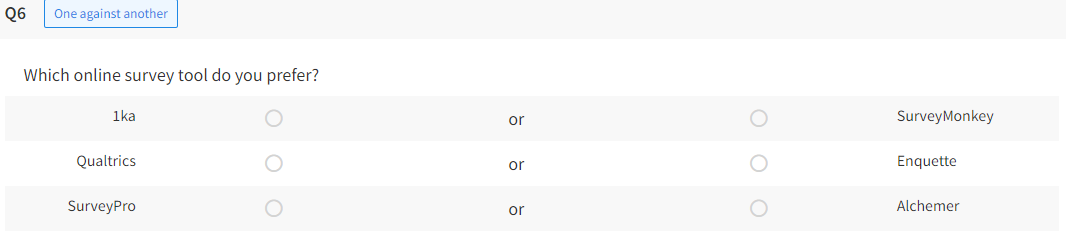
With this question type, respondents are enabled to rank possible answers in a specific order. For example, they can arrange their favorite beverages or indicate which online survey tools they use most frequently.
Ranking is a cognitively demanding survey question. Respondents usually cannot rank more than 5 to 10 categories effectively. Compared to alternative rating scales, ranking does not offer significant advantages and has several drawbacks (e.g., difficulty calculating averages, variance, performing multivariate analyses, making comparisons, etc.). Ranking is primarily used when the precise order of responses is required (unlike a table where multiple categories can receive the same rating). Such examples are common in purchasing decisions and other selection problems.
When using the 'Ranking' question type, the survey creator can choose from the following ranking methods:
- Drag and Drop, where respondents drag a specified number of options from left to right.
- Numbering, where respondents select a number from a dropdown list next to each option.
- Move, where respondents move options vertically.
- Image Hotspot, where respondents rank predefined areas on an image.
It is also possible to set the number of responses that respondents can rank.
Example of a survey question: please rank the colors in order of preference >>
This feature is available to users of individual 2KA and 3KA packages and users of business packages for groups.
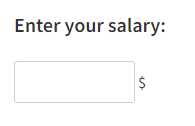
The 'Number' question type is used to enter numbers. In the question settings, under 'Answers', you can set the number of categories (1 or 2), the display of the unit field, and the width of the input field. In addition, in the settings under 'Limits', you can set the number of whole places, the number of decimal places, the minimum (Min) and maximum (Max) number that respondents can enter, and set a warning for exceeding the limit.
Example of a 'Number' question type:
In the question settings, you can also select the 'Slider' layout, where the respondent does not enter a number, but instead uses the slider to select a number between the minimum and maximum.
Example of a slider:

12. Text Table Question Type
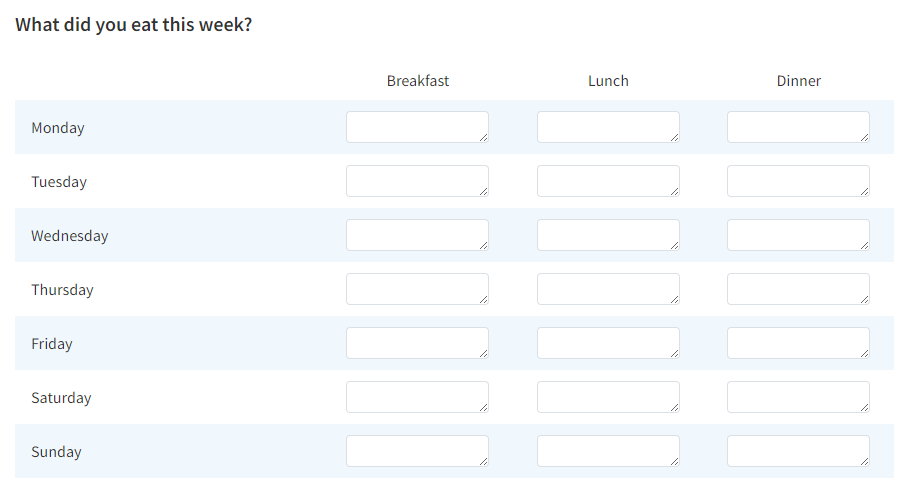
The 'Table - Text' question type allows respondents to enter short text answers to multiple questions and across various criteria. For example, you can create a weekly schedule where respondents fill in what they ate for each meal every day.
13. Number Table Question Type
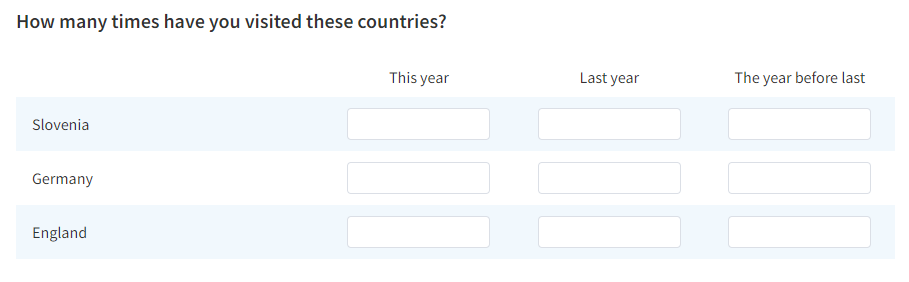
With this question type, respondents enter numbers based on one or more criteria listed in the table headers and sub-questions or categories listed in the rows on the left side of the table. For example, this type of question is a good choice for recording the number of visits to different countries across various years.
14. Table - Multiple Answers Question Type
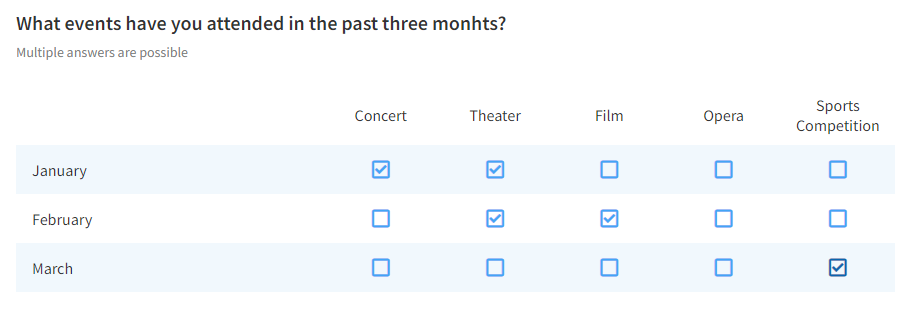
The 'Table - Multiple answers' question type allows respondents to select one or more possible answers, which are located in the header of the table. These answers are the same for several different sub-questions or categories, which are located in the rows on the left-hand side of the table.
This type of question is best suited for displaying multiple 'Categories - Multiple answers' (checkbox) questions that have the same possible answers.
15. Semantic Differential Question Type
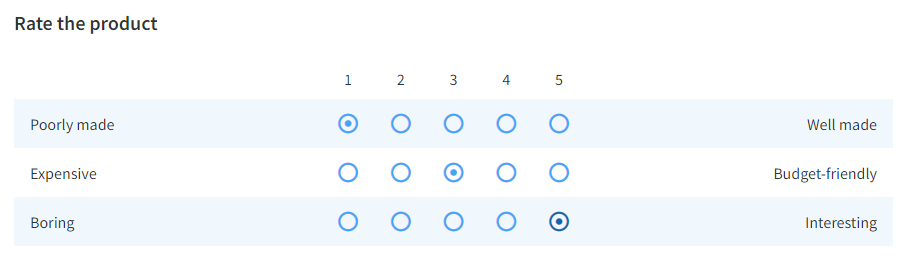
This question type allows respondents to rate categories according to different criteria. For example, in one question, respondents can rate the quality, price, appearance, etc. of a product on a scale of e.g. 1 to 5.
16. Take a Picture Question Type
You can include the 'Take a picture' question type in the questionnaire, which can be found among all question types. The question allows the respondent to take 'selfies' and other photos.
Completing the survey on a mobile device
If the respondent is completing the survey on a mobile device, a camera icon will be displayed for the 'Take a picture' question type. When the icon is clicked, the default photo-taking application opens (if supported by the mobile browser). The respondent is shown the photo taken and then has the option to confirm the displayed photo or cancel and take a new one. When the photo is confirmed, the respondent is returned to the survey, where the photo is also displayed. The respondent can then take another picture if they are not satisfied with the existing one, or delete the picture.
Completing the survey on a computer
If the respondent completes the survey on a computer, the question will be displayed in two ways:
- If the computer has a camera connected, the question will ask for permission to access the camera. Once the user confirms and allows access to the camera, the camera will be displayed on the left side of the screen, and if the user clicks on the camera icon, the photo taken will be displayed on the right side of the screen.
- If the computer does not have a camera, the question behaves in the same way as the 'File upload' question type. The respondent can upload any photo as a file (the prerequisite is a file with an extension indicating an image).
Example of a survey with the 'Take a picture' question type (preview on a computer) >>
In the analyses and data, the photo is stored as a link (URL) to the photo. The survey editor has the possibility to edit the link (delete or replace it).
17. Heatmap Question Type
A 'Heatmap' is a question type that allows results to be presented graphically in the form of colors. In this question type, the respondent provides feedback on the image adjacent to the question, and it differs from the Hotspot question type in that the respondent is not limited to selecting predefined places in the image, but can mark all parts of the image (of course, we can also limit the areas if we wish).
The 'Heatmap' question type can be found in the 'EDIT' – 'Questionnaire' tab. Select 'Heatmap' from the set of all questions in the 'Special questions' segment. Upload an image via the icon that appears within the question.
In the question settings (click on the question toolbar or on the 'pencil' icon), under 'Basic', you can specify the maximum number of possible answers or the 'Number of possible clicks'. If more than one click is allowed, you can also indicate whether to show a click counter ('Show clicks counter'). In addition, you can indicate whether to show clicks ('Show clicks') and select the color and size of the click indicators. For the shape of the click, there are two options to choose from: circle or square. If desired, we can also add a specific region to the image. This is done by clicking repeatedly on the desired part of the image and dragging the intersections of the resulting character as desired. Right-click to delete the points or intersections. You can also add a region name.
In the 'ANALYSE' – 'Statistics' tab we have the basic statistical calculations just like for the other question types. There is also a 'Heatmap' option, where you can graphically display the results on a selected image, or the density of the selected results, or the clicks (frequency) of respondents on a specific question.
Example of a survey with the 'Heatmap' question >>
Example of 'Heatmap' analysis >>
Graphical display of 'Heatmap' >>
This feature is available to users of individual 2KA and 3KA packages and users of business packages for groups.
18. Image Hotspot Question Type
You can include the 'Image Hotspot' question type in the questionnaire, which can be found among the layout formats for the 'Categories - Single answer', 'Categories - Multiple answers' and 'Table - Single answer' question types. The question allows the question to be set in the form of an image and the respondent answers by marking one or more points or areas on the image.
Setting up an Image Hotspot question:
- To create a Hotspot question, first select the 'Categories - Single answer' from the set of all questions.
- On the right hand side of the question settings under 'Layout', select 'Image Hotspot'.
- Upload an image using the icon that appears within the question.
- In the question settings, the 'Add a region' button appears (under Regions - Answers).
- This will open the edit zone window where you can use the left mouse click to highlight the region in the image. You can use the right mouse click to delete the region points you have already entered. By holding down the left mouse button, you can move the already entered region points. When you are happy with the region you have created, enter a name for the region and click 'Confirm'. You can add multiple regions.
Additional settings:
- Color of selected region: specify how the region selected by the respondent should be colored.
- Illumination: select the type of illumination or the way the regions are visible or invisible to the respondents.
- Always: all set regions are visible;
- On mouseover: the region is highlighted when the mouse is hovered over the region.
- Hint: select the options for displaying hints (answers) with the names of the regions.
- Show on mouseover: the hint is visible when hovering over the region;
- Hide: the hint (answer or region name) is not visible.
Example of a survey using Image Hotspot >>
19. Constant Sum Question Type
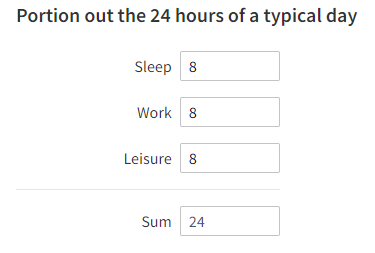
For the 'Constant Sum' question type, respondents enter a number for each answer, which is then added to the total at the bottom.
This feature is available to users of individual 2KA and 3KA packages and users of business packages for groups.
20. Visual Analog Scale Question Type
You can include the 'Visual analog scale' question type in the questionnaire, which can be found among the layout formats for the 'Categories - Single answer' question type.
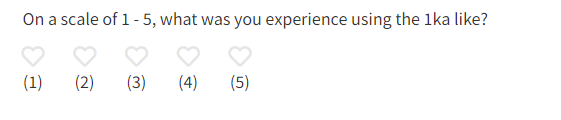
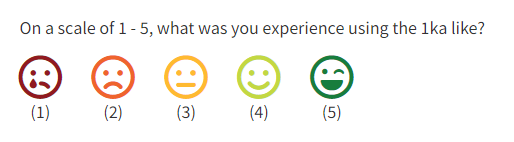
The visual analog scale (VAS) allows you to display the answers on a scale in the form of visual responses (emoticons).
You can set up a VAS question by inserting a 'Categories - Single answer' question type in the questionnaire. In the question settings on the right-hand side, in the 'Basic' tab, under the 'Layout' setting, select the 'Visual analog scale' option.
You will then see the 'Number of answers' setting in the 'Answers' segment of the settings, where you can choose between 2 and 7 answers.
Example of a survey using the Visual Analogue Scale >>
21. Confirmation Question Type
The 'Confirmation' question type is used to verify that the respondent has correctly entered information previously provided in the survey. It is typically used in cases where it is important for the respondent to enter data accurately, such as email addresses, phone numbers, or other sensitive information.
22. Slider Question Type
This type of question allows us to insert a slider into the questionnaire and, in the settings, specify the range within which the slider can move (e.g., from 0 to 100), how much it moves, how we want the slider to look—we can display possible answers, intermediate lines, and labels for different areas of the slider, all of which allow for an easier and more accurate overview of what the respondent is selecting by moving the slider.
Entering numerical answers in the form of a slider
There are two ways to insert a 'Slider' in the questionnaire: you can select it from the list of All question types in the menu on the left, or you can select 'Slider' as the 'Layout' in the question editor for the 'Numeric input' and 'Number Table' question types, with additional options:
- display of the slider’s handle (the respondents' selection is marked with a circle when this setting is disabled);
- disable the display of the number above the selected point;
- display of all possible answers (all possible answers are displayed on the slider - if the slider's handle is enabled answers are shown in the shape of an ellipse and if the slider's handle is disabled answers are displayed in a circle);
- slider’s step;
- the lower limit and the upper limit;
- display of interim lines;
- display of numerical labels (minimum and maximum);
- display of descriptive numerical labels;
- display of descriptive labels at maximum and minimum that can also be renamed;
- display of default descriptive labels (determine the number and descriptive label that you want to associate with the selected number);
- display of area labels (determine the number of areas and name them).
Example of a survey with a slider >>
23. Combined Table
You can include the 'Combined table' question type in the questionnaire, which can be found among all question types. The Combined Table allows you to combine different question types such as single answer, multiple answers, text input, numeric input and date.
For each question type, you have several kinds of settings:
For 'Single answer', you can set:
- number of answers horizontally, you can choose from 1 to 20;
- the layout of answers, you can choose the classic table or drop-down menu;
- the maximum width of the question (subtable): from 10 % to 60 %;
- visibility of the question - you can also specify to whom the question is visible, you can also use it to edit a table in the 'Data' tab afterwards and therefore mark it as visible only to administrators.
For 'Multiple answers', you can set:
- number of answers horizontally, you can choose from 1 to 20;
- the layout of answers, you can choose the classic table or drop-down menu;
- the maximum width of the question (subtables): from 10 % to 60 %;
- visibility of the question, by default the question is visible to all.
For 'Text input', you can set:
- number of answers horizontally, you can choose from 1 to 20;
- the width of the text input field, you can choose between values from 1 to 9;
- the number of lines of the input field, you can choose from 1 to 10 lines;
- the maximum width of the question (subtables): from 10 % to 60 %;
- visibility of the question.
For the 'Numeric input', you can set:
- number of answers horizontally, you can choose from 1 to 20;
- integer digits, you can choose between the values from 1 to 10;
- decimal digits, you can choose from 0 to 10;
- the maximum width of the question (subtable): from 10 % to 60 %;
- visibility of the question.
'Date' is displayed in the form of a calendar, where the respondent can select a complete date (day, month, year), next to the calendar is a field in which the selected date is displayed. For the 'Date' you can set:
- number of answers horizontally, you can choose from 1 to 20;
- the width of the field for the selected date, you can choose between 1 and 9;
- the number of field lines, you can select from 1 to 10 lines;
- visibility of the question,
- the maximum width of the question (subtable): from 10 % to 60 %;
- the lower and upper limit for year display.
The combined table also provides a simple overview of the data under the 'DATA' - 'Browse' tab.
This feature is available to users of individual 2KA and 3KA packages and users of business packages for groups.
24. Dropdown Table Question Type
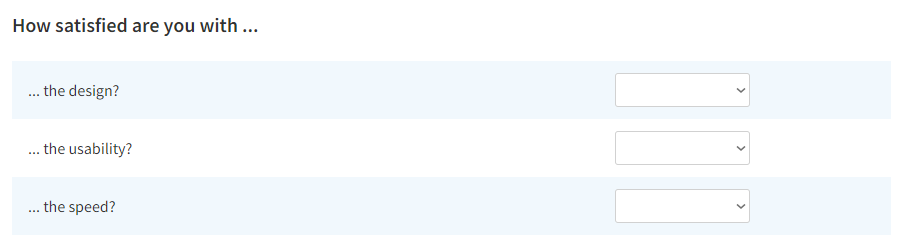
This question type allows the respondents to choose one criteria in the head of the column, on the basis of which they then evaluate the items or topics that are located in rows on the left side of the table. This question type is the most convenient way to display questions where different topics have the same possible answers.
An example of such a question could be satisfaction with a website. For example, the developers of a website can use a single question to gain insight into user satisfaction with the design, usability, speed, etc. To achieve the same effect without this question type, three individual questions of the 'Categories - Single Answer' type would be needed instead, which would complicate the creation of the questionnaire and the subsequent analysis of the data.
The 'Dropdown table' question type is the same as 'Classic table', with the exception of radio buttons being replaced by a drop-down menu.
25. Location Question Type
In the set of all question types, in the 'Special questions' section, you can find the 'Location, GPS' question type. This question type has three ways of entering a location: 'My location', 'Multi location' and 'Choose location'.
'My location'
'My location' allows you to identify the current location of the respondent. The focus on the map is pre-set to Slovenia, but can be changed by clicking on the 'Set focus' button on the map to make the map clickable, so you can use your mouse to set the desired focus. In the question settings, the option to query the current location and display a search window is pre-set. The user can also activate the display of a sub-question, which appears as a marker on the map with an input field.
Example of 'My location' question subtype >>
Multi location
'Multilocation' allows the respondent to mark several places on the displayed map. The question is particularly useful when asking the respondent for more than one location, e.g. which places they have visited in the last year. This option is accessed by selecting the question 'Location, GPS' and selecting 'Multi location' from the three 'Subtype' options given.
The focus on the map is preset to Slovenia, and the search window display is also turned on by default. The maximum number of possible answers is pre-set to three (3), which the user can change using the drop-down list, and can also turn on the display of the sub-question, which will appear as a marker on the map with an input field.
Example of 'Multilocation' question subtype >>
For both location input options, two columns are created in the data table: 'Address' and 'Coordinates', and if a subquestion is configured, a 'Value' column. The entered or selected addresses and coordinates are in the form of a link to a pop-up window with a map and a marker for each respondent. The results in the analyses are displayed in a similar way, except that there is also a 'Google maps' icon in the leftmost cell, which acts as a link to a pop-up window with a map of all the responses/markers for each variable.
Choose a location
The 'Choose location' option provides the respondent with pre-marked values or points on the map where they can enter their answer. This option is accessed by selecting the question 'Location, GPS' and selecting 'Choose location' from the three 'Subtype' options given. This question type is useful when the survey editor wants to illustrate a specific route and several locations on a map. The question allows the survey editor to add values or markers by clicking on the map, and with the map toolbar, the survey editor can draw on the map. They can start by marking places on the map with clicks, and continue drawing the route by clicking on the 'Hand' button and then clicking on the map where he wants the route to go. With more clicks, they can make turns and mark the route accurately. When they click the 'Hand' button again, they finish drawing the route. A box appears to enter the name of the route and a 'Delete' button appears to delete this marked route. The legend explains that the 'Hand' button means finish drawing, the 'Marker' button adds a marker and the 'Line' button adds a line. For marker and line, as mentioned, a title can also be added to serve as additional information or a label. It should be noted that the line is not a value, but only additional information to the respondent (e.g. illustrating several possible routes). As with the Multi Location - Marker Entry sub-type, a sub-question can be added in the settings. The results are displayed as coordinates in the data table.
Example of 'Choose a ‘location' question type >>
This feature is available to users of individual 2KA and 3KA packages and users of business packages for groups.
26. CAPTCHA Question Type
In order to avoid fake clicks on the survey, the introduction can be set to display and verify with a CAPTCHA test, where the respondent must first prove that they are not a robot (program).
Example of a survey with CAPTCHA test >>
27. Number Table Question Type
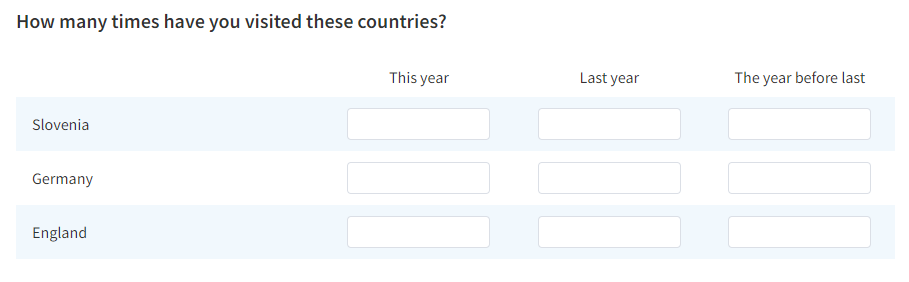
With this question type, respondents enter numbers according to one or more of the criteria located in the header of the table and according to the sub-questions or categories located in the rows on the left-hand side of the table. This question type is, for example, a good choice for entering the number of visits to different countries in different years.
28. GDPR Question Type
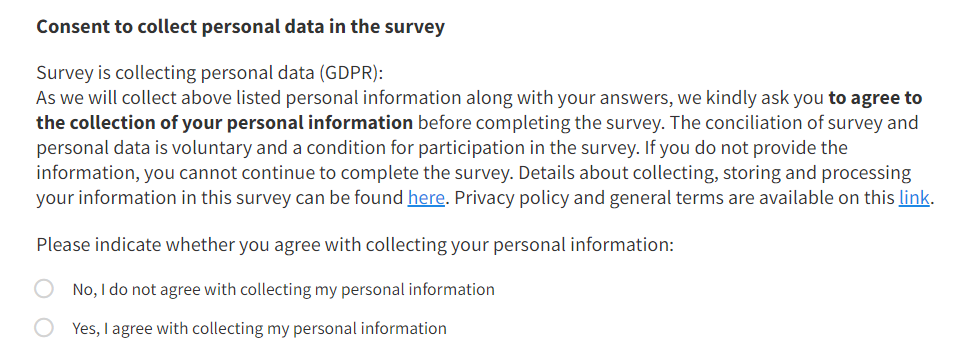
The new GDPR (General Data Protection Regulation) legislation was enforced across all member states on 25 May 2018. The GDPR is a complex regulation that seeks to ensure the personal data protection of European residents. It includes rules on how organizations collect, process, archive and use personal data.
In a questionnaire, it can be included as a 'GDPR' question type, which adds the following question to the survey:
29. File Upload Question Type
This question type allows respondents to upload a file as their answer. The file size limit is 16 MB, and users can upload files of the following types: "jpeg", "jpg", "png", "gif", "pdf", "doc", "docx", "xls", "xlsx", "ppt", "pptx".
To avoid harmful or inappropriate files, you can set a minimum and maximum character limit for the file name. The limit can be displayed to the respondent while they are completing the question along with a warning can be given if the limit is exceeded.
30. URL Question Type
The 'URL' question type is used for questions that include a link to another webpage below the text, providing context or helping the respondent answer the question.
31. SN Names Question Type
This question allows respondents to enter all names from their social network. All subsequent questions in the survey need to be placed in a loop.
The function enables respondents to answer the same set of questions for each person they have listed.
Enable the 'SOCIAL NETWORKS' module: The social networks module supports capturing egocentric social networks (ego-alter), including Antonucci's circles.
Networks are composed of structured questions, starting with a name generator. The respondent (ego) lists individuals (alters) for whom subsequent questions (in the loop) are asked. The second component is the loop, where identical questions are posed for all alters of a specific ego. The third component consists of sub-questions for the alters.
An example of an egocentric social network questionnaire is available and can be found in the library among the template questionnaires, which can be copied as a template for your questionnaire.
Example:
- Name Generator: Please list all the names of people in your social network.
- Loop: For each person you listed, answer the following questions:
- How often do you communicate with [Name]?
- What is the nature of your relationship with [Name]?
By enabling the 'SOCIAL NETWORKS' module, you can systematically gather and analyze data on the respondent's social connections.
New questions with social network support are added in the ‘EDIT’ - ‘Questionnaire’.
32. Electronic Signature
In the questionnaire, you can include the 'Electronic Signature' question type, which you can find among all question types on the left side of the screen. An electronic signature can be used for registrations, logins, confirmations, etc.
The question is displayed to the respondent in two parts - the first part is a field where the respondent signs their name graphically, and the second part is a 'Signature of' field where the respondent types in their name. It is advisable to remind respondents to fill in all fields.
The signature is recorded in the survey data in two parts: graphically (as a link to an image of the signature) and as text (what the respondent entered in the 'Signature of' field).
An example of an electronic signature survey >>
This feature is available to users of individual 2KA and 3KA packages and users of business packages for groups.