UREJANJE

How to Repeat the Title Bar in a Table

If you have a table with a large number of items (sub-questions), it is advisable to repeat the title bar (header row). To do this, create a table question first: in the 'EDIT' - 'Questionnaire' tab, select your desired table type from 'All Question Types' in the menu on the left or via the 'Add question' button below the questionnaire.

Once the table is set up, the question settings will open on the right-hand side. In the 'Answers' section, there is a setting called 'Repeat header row'. In the drop-down menu, you can choose to repeat the title bar every 5, 10, 15 or 20 rows.

Example of a 20-item survey (sub-questions) and a repeat of the header row every 5 lines >>


Related content

Accessibility of Surveys for People With Special Needs

We strive to make the online surveys created in the 1KA tool as easy as possible to complete, and also accessible to respondents with special needs.

The questions in the survey are adjusted so that the respondent can move between individual questions using the tab key.

The respondent can move between the individual answers in the question using the arrow keys.

Confirming the answer can be done by pressing the space bar.

EXCEPTIONS:

Date question type: move to the date question with the tab key and confirm the calendar icon by pressing the space bar to open the calendar. You can scroll through the calendar by holding down the CTRL key and an arrow key. Confirm the selected date with the enter key.

Specific question types cannot be customized for keyboard answering by default:

  • drag and drop layout (single-answer, multiple-choice, table)
  • image hotspot layout (single-answer, multiple-choice, table)
  • location and different layouts of the location question (Google map)
  • heat map
  • sorting layout (moving and shifting categories)

If you want the questionnaire to be fully accessible this way, we recommend that you use other layouts for these questions instead.


Adding a New Standard Words Language

1KA currently supports 43 different world languages. This means that standard words (such as 'Next page') will be automatically translated into the language of your choice. The corresponding script (e.g. Cyrillic, Greek, Chinese, Arabic, etc.) is also automatically enabled.

To use different languages in your survey, navigate to the 'EDIT' - 'Settings' - 'Basic settings' tab and click the 'Multilanguage surveys' button in the 'Language' settings section. On this page, you can translate the survey into different languages.

The translation interface can also be accessed via the globe icon Icon (globe) to access language interface at the top right of each survey. 

If you would like to add a language that is not on the list of languages, first download the template file here. Translate all the mentioned standard words into a new language and send us the file via the form. The service is chargeable (1 programming hour according to the published pricelist).


The functionality is available for users of the 2KA and 3KA packages for individuals, and for users of the business packages for groups.


File Upload

In the 'EDIT' - 'Questionnaire' tab, you can also insert the question type 'File upload' in your survey, where the respondent can upload their file to the survey. Open the menu on the left side or click on the "Add question" button at the bottom of the questionnaire, then select 'File upload' from the 'All Question Types' drop-down under 'Standard Input'. Enter the text of the question and adjust the settings if you wish.

Additional restrictions for respondents when uploading a file:

  • the maximum allowed size of a file uploaded by the respondent is 16 MB;
  • allowed file types are: "jpeg", "jpg", "png", "gif", "pdf", "doc", "docx", "xls", "xlsx", "ppt", "pptx", "zip", "rar", "rds", "rdata", "rmd", "qmd";
  • a maximum of 4 input fields is allowed in an individual question, i.e. a maximum of 4 files that the respondent can upload for one question.

The respondent can remove the file they uploaded and upload another or leave it blank. In analysis and data, the file is saved as a link (URL) to the file. The survey editor has the option to edit the link (delete or replace it).

Related content

Granting Survey Access to 1KA Helpdesk

Protecting user data is one of 1KA's top priorities. Access to data is limited to the author (editor) of the survey and additional co-editors, which are added by the author of the survey.

1KA's helpdesk and the website administrator of www.1KA.si do not have access to surveys and data without the explicit consent of the user.

In case the user requires assistance from 1KA’s administrators, the user must grant temporary access to 1KA's helpdesk (until the issue is resolved). Despite granted access, administrators are still committed to the highest standards of privacy protection, as defined in the Terms of Use.

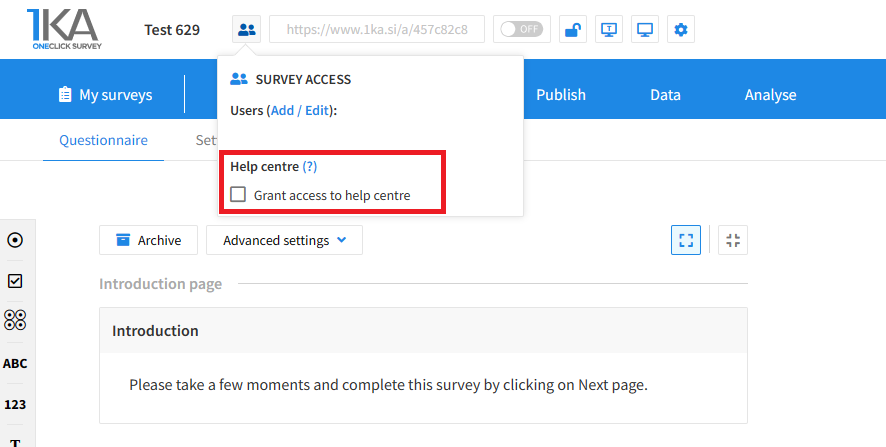
Each survey has an icon in the top left corner which enables you to grant access to 1KA's helpdesk and administrators. You have to click 'Grant access to help centre'.

Grant access to help centre
 

The author can add co-editors in the tab 'EDIT' – 'Settings' – 'Editor access'.

Related content

1KA is free to use for basic users