Website Evaluation
The video tutorial shows how to create a 1KA survey where the respondents will be shown a certain website on half of the screen and the survey we created in 1KA on the other half.
Students, researchers, teachers and others with an ArnesAAI account can log in to 1KA.ARNES.SI , where you can use all advanced 1KA settings for free and unlimited .
Not sure if you have an AAI account? See instructions for obtaining an AAI account or frequently asked questions about using 1KA with ArnesAAI.
Students, researchers, teachers and others with AAI access can use 1KA for free and unlimited.
General users can sign in with their email address or Facebook or Gmail account.
 Google Sign In

 Google Registration
If you still have problems finding our confirmation e-mail, you can contact us by e-mail info@1ka.si.
You won't be able to login into this webpage until you confirm your registration through e-mail!

The video tutorial shows how to create a 1KA survey where the respondents will be shown a certain website on half of the screen and the survey we created in 1KA on the other half.
A simpler way of evaluating websites is provided by the advanced module which divides the browser window into two parts - one where the respondent views the website and the other where the respondent completes the questionnaire. This avoids the constant switching from the questionnaire to the website.
The evaluation process is more efficient if each survey question is on its own page, so that you can use a different web address for each page.
Once the questionnaire has been created, click on the 'EDIT' - 'Settings' navigation tab (or the wheel icon at the top) and select the 'Website evaluation (split screen)' option from the left menu under the 'Advanced Modules' category.
By activating the 'Website Evaluation' module, you enable the display of settings where you can specify which websites will be opened during the evaluation.
2. Evaluation of a single website
Enter the URL of the website in the 'Link to the website you wish to evaluate (split screen):' input field of the 'Website evaluation' tab.
This way, the content of the top part of the browser window remains unchanged while the respondent scrolls through the pages of the questionnaire.
If they wish, they can click on the content of the web page in the top half of the browser window while completing the survey.
3. Evaluation of various different sub-pages (or different websites)
You can ask questions about different websites or subpages by entering the URLs for each website or subpage.
This can be done in the 'Additional pages' section of the 'Website evaluation' tab in the input fields 'Page 1:', 'Page 2:', etc.
The functionality is available for users of the 3KA package for individuals, and for users of the business packages for groups.
Protecting user data is one of 1KA's top priorities. Access to data is limited to the author (editor) of the survey and additional co-editors, which are added by the author of the survey.
1KA's helpdesk and the website administrator of www.1KA.si do not have access to surveys and data without the explicit consent of the user.
In case the user requires assistance from 1KA’s administrators, the user must grant temporary access to 1KA's helpdesk (until the issue is resolved). Despite granted access, administrators are still committed to the highest standards of privacy protection, as defined in the Terms of Use.
Each survey has an icon in the top left corner which enables you to grant access to 1KA's helpdesk and administrators. You have to click 'Grant access to help centre'.
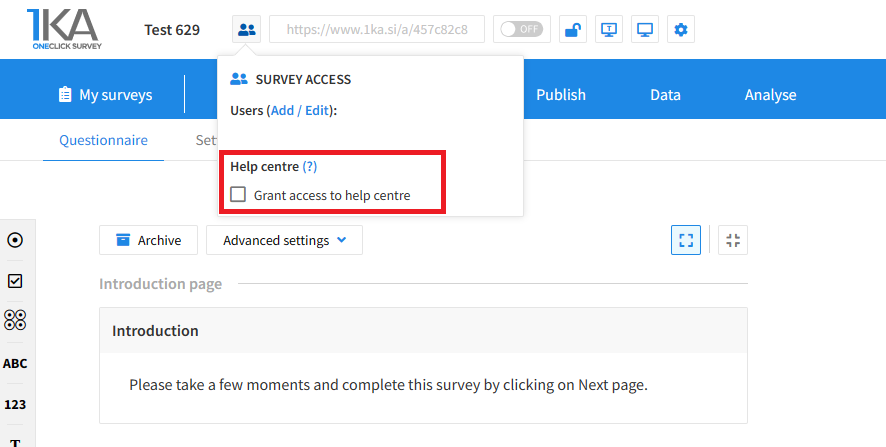
The author can add co-editors in the tab 'EDIT' – 'Settings' – 'Editor access'.
The video guide shows how to copy an existing survey in 1KA.
Each survey we previously created or have access to edit can be copied and reused to collect data.
The video tutorial shows how to share a survey with other editors in 1KA.




