Archives
The video guide shows how to create and access archives in 1KA.
The video guide 1KA Survey Import can be accessed here.
Students, researchers, teachers and others with an ArnesAAI account can log in to 1KA.ARNES.SI , where you can use all advanced 1KA settings for free and unlimited .
Not sure if you have an AAI account? See instructions for obtaining an AAI account or frequently asked questions about using 1KA with ArnesAAI.
Students, researchers, teachers and others with AAI access can use 1KA for free and unlimited.
General users can sign in with their email address or Facebook or Gmail account.
 Google Sign In

 Google Registration
If you still have problems finding our confirmation e-mail, you can contact us by e-mail info@1ka.si.
You won't be able to login into this webpage until you confirm your registration through e-mail!

The video guide shows how to create and access archives in 1KA.
The video guide 1KA Survey Import can be accessed here.
In the 'EDIT' - 'Archive' - 'Editor's Activity' tab, all changes made in the survey can be monitored:
In all three cases mentioned above, a table with the changes can be exported in Excel format by clicking on 'Download Excel' above the table with the changes.
Users of the 3KA package for individuals or the business packages for groups who have access to sending email invitations have the option of reviewing all email deliveries in the 'PUBLISH' - 'Archive' - 'Archives' 'Invitations' tab.
Each sent email invitation is saved in a list, which includes the date and time of delivery, message content, message subject, number of successfully sent emails, errors, sender's name, as well as the sender's comments. By clicking on the number of successfully sent emails, you can view all emails in that delivery.
On 1KA.Arnes.si, you can access the list of invitations sent in the 'Invitation status' tab. You can find out more about using the 1KA system to send invitations on 1KA.arnes.si here.
The functionality is available for users of the 3KA package for individuals, and for users of the business packages for groups.
In the 'ANALYSE' – 'Archive' – 'Analysis archive' tab, all archives of analyses, tables or graphs that you have archived in the 'ANALYSE' tab are displayed. You can also create an archive of the current analysis on this page.
A list of archive analyses is generated along with the following information:
When an analysis archive is created, the editor also has access to the following information:
The functionality is available for users of the 2KA and 3KA packages for individuals, and for users of the business packages for groups.
Protecting user data is one of 1KA's top priorities. Access to data is limited to the author (editor) of the survey and additional co-editors, which are added by the author of the survey.
1KA's helpdesk and the website administrator of www.1KA.si do not have access to surveys and data without the explicit consent of the user.
In case the user requires assistance from 1KA’s administrators, the user must grant temporary access to 1KA's helpdesk (until the issue is resolved). Despite granted access, administrators are still committed to the highest standards of privacy protection, as defined in the Terms of Use.
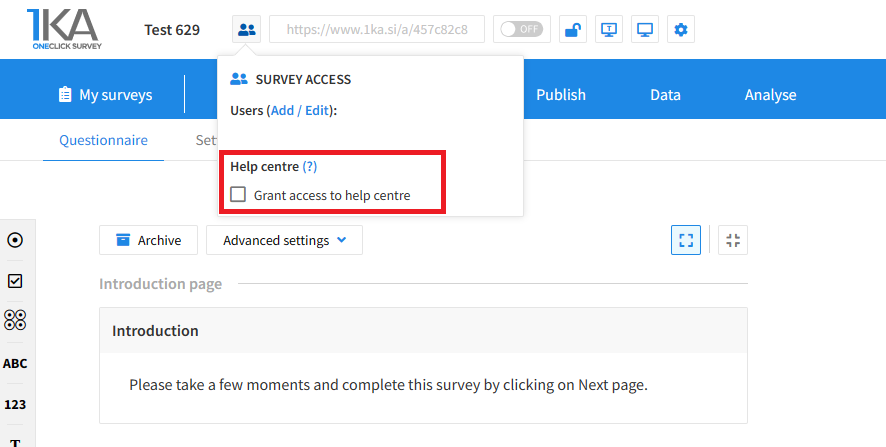
Each survey has an icon in the top left corner which enables you to grant access to 1KA's helpdesk and administrators. You have to click 'Grant access to help centre'.
The author can add co-editors in the tab 'EDIT' – 'Settings' – 'Editor access'.
The video guide shows how to copy an existing survey in 1KA.
Each survey we previously created or have access to edit can be copied and reused to collect data.
The video tutorial shows how to share a survey with other editors in 1KA.




