

ANALYSIS

Analysis Archives

In the 'ANALYSE' – 'Archive' – 'Analysis archive' tab, all archives of analyses, tables or graphs that you have archived in the 'ANALYSE' tab are displayed. You can also create an archive of the current analysis on this page.

A list of archive analyses is generated along with the following information:

  • name of the archive;
  • comment/note;
  • information about access to the archive (password, no password, only survey administrators).

When an analysis archive is created, the editor also has access to the following information:

  • type of analysis (e.g. summary);
  • date of archive creation;
  • duration of the archive;
  • archive author's email;
  • email of the survey editor who made the last change to the archive;
  • the option of deleting, editing and sending links to the archive.

The functionality is available for users of the 2KA and 3KA packages for individuals, and for users of the business packages for groups.

Related content

Break

If you click on the 'ANALYSE' – 'Statistics' tab and select 'Break' from the drop-down menu ('Select:'), you can generate analyses based on a single independent variable.

Select the independent variable (e.g. gender) from the newly displayed drop-down list and the analysis of all the questions in the survey will be displayed in the form of bivariate tables. The results for each question are displayed according to the variable selected (e.g. each table shows the responses for each question, with answers separated by the gender of the respondent).

By default, the results are displayed as frequencies, if you want to display them as percentages then select the 'Percentage' option, and you can also choose to display the analyses as tables or graphs (option to the right of the drop-down menu).

2KA and 3KA package users as well as users of the business packages for groups can export each individual 'Break' table to PDF, MS Word or MS Excel formats. These users can also analyse statistics with advanced analysis options and filter them according to segments, zoom, groups, variables, conditions, missing values, time period and unit status.


Some of the functionalities described are only available for users of the 2KA and 3KA packages for individuals, and for users of the business packages for groups.


Related content

Granting Survey Access to 1KA Helpdesk

Protecting user data is one of 1KA's top priorities. Access to data is limited to the author (editor) of the survey and additional co-editors, which are added by the author of the survey.

1KA's helpdesk and the website administrator of www.1KA.si do not have access to surveys and data without the explicit consent of the user.

In case the user requires assistance from 1KA’s administrators, the user must grant temporary access to 1KA's helpdesk (until the issue is resolved). Despite granted access, administrators are still committed to the highest standards of privacy protection, as defined in the Terms of Use.

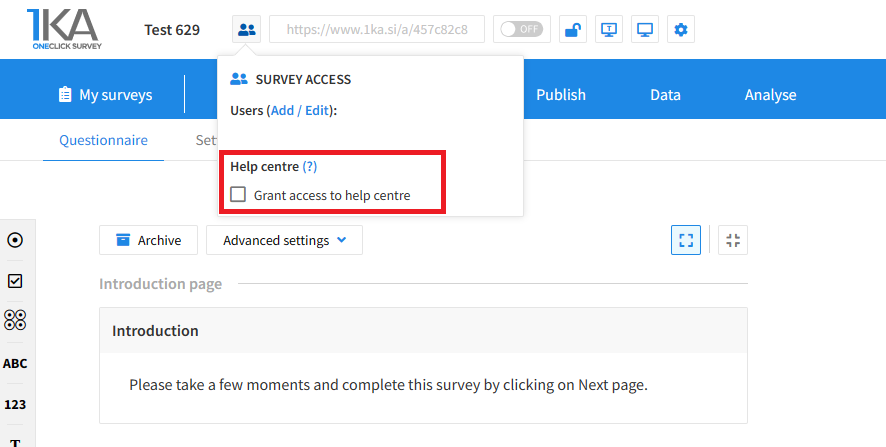
Each survey has an icon in the top left corner which enables you to grant access to 1KA's helpdesk and administrators. You have to click 'Grant access to help centre'.

Grant access to help centre
 

The author can add co-editors in the tab 'EDIT' – 'Settings' – 'Editor access'.

Related content

1KA is free to use for basic users


