

 Google Sign In

Link (URL)
Setting a Custom Survey URL
When you create a survey in 1KA, it is assigned a random string of numbers and letters, which then appear in the survey URL; for example www.1ka.si/a/4669.
In the 'PUBLISH' – 'Links' tab, you can click on the 'Create custom URL' button to add a URL that is more engaging and appealing to respondents. You can use a minimum of three characters (č, ć, š, ž, đ characters can not be used). The system distinguishes between upper and lower case letters.
The functionality is available for users of the 2KA and 3KA packages for individuals, and for users of the business packages for groups.
Related content
Granting Survey Access to 1KA Helpdesk
Protecting user data is one of 1KA's top priorities. Access to data is limited to the author (editor) of the survey and additional co-editors, which are added by the author of the survey.
1KA's helpdesk and the website administrator of www.1KA.si do not have access to surveys and data without the explicit consent of the user.
In case the user requires assistance from 1KA’s administrators, the user must grant temporary access to 1KA's helpdesk (until the issue is resolved). Despite granted access, administrators are still committed to the highest standards of privacy protection, as defined in the Terms of Use.
Each survey has an icon in the top left corner which enables you to grant access to 1KA's helpdesk and administrators. You have to click 'Grant access to help centre'.
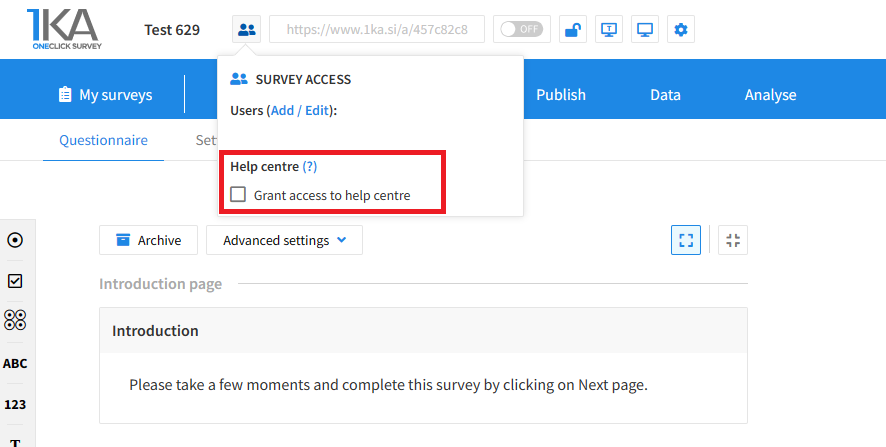
The author can add co-editors in the tab 'EDIT' – 'Settings' – 'Editor access'.
Related content
Copying the Survey
The video guide shows how to copy an existing survey in 1KA.
Each survey we previously created or have access to edit can be copied and reused to collect data.
Adding Additional Survey Editors
The video tutorial shows how to share a survey with other editors in 1KA.
Embedding the Survey on a Website
In the 'PUBLISH' - 'Overview' tab, you can access the code to embed the survey in the website, where it becomes an integrated part of the page and does not need to be accessed from a separate address. It can be generated with or without JavaScript.
There are two ways to embed a survey on a web page:
- With normal embedding, where the survey is an integrated part of the page;
- By displaying the survey in a pop-up window within the same browser window. In this case, due to modern security standards, it is not possible to directly copy the code to display it as a pop-up window on your website, but it has to be programmed manually. You can do this yourself or contact us for help, but the service comes at a fee. You can order the service via the form >>
Copy this code on your website and, if necessary, set the height of the window (parameter 'height=') in which the survey will be displayed.
For the best possible appearance of the embedded survey, it is recommended not to use the survey progress indicator (it is turned off by default). In case you have enabled it, you can turn it off in the 'EDIT' - Design' tab. To do this, click on 'Customize' on the selected theme and then set 'Show bar/progress indicator:' to 'No'.
Related content




