Google Sign In

PUBLISH
Combining Lists of Email Invitations
1KA allows you to merge lists of existing emails at any time:
- Add and save lists of respondents in the 'PUBLISH' - 'Invitations' - 'Add' tab;
- In the 'PUBLISH' - 'Invitations' - 'Lists' tab, you will find an overview of all saved lists, where you can choose between 1) lists of respondents for the current survey, 2) lists of respondents of all your surveys, 3) sending archives;
- If you wish to combine respondents of multiple lists and include them in a new survey, you can select the desired lists and then check 'Editing' on the right-hand side. The system will open a new list of all selected email addresses of respondents, which you need to save again.
When generating a new list, the system will filter out duplicate records or email addresses. In a new survey, where you want to use such a merged list of respondents, you must select the option to see the respondent lists of all your surveys (as explained in bullet 2).
The functionality is available for users of the 3KA package for individuals, and for users of the business packages for groups.
Related content
Sending Email Invitations
Standard ways of conducting online surveys
Two emails or untracked invitations sent to the entire list of respondents are almost always sufficient, as follows:
- In the first email, you invite all potential respondents in the form "I invite you to complete the survey ...".
- The second email should follow 2-3 days after the first, but no more than a week. In it, you should again address the entire list of potential respondents (both those who have already completed the questionnaire and those who have not yet done so) with the same salutation to the effect: "A few days ago you were invited to complete the survey .... We sincerely thank all those who have responded. For those of you who have not yet responded to the survey, we once again invite you to do so ..."
The two messages are sent to the entire list of potential respondents in the usual way of sending emails, where you send an email invitation with the URL of the survey in your client (Gmail, Yahoo, MS Outlook, Thunderbird, etc.). It is true, however, that there are restrictions that need to be taken into account, as in some places there is a limit on the number of emails sent per day (e.g. Gmail has a limit of 500 addresses for individuals in 2023 when sending via the web application). This can be solved by spreading the sending of your invitations across several days, or by sending from several different email accounts.
Special cases:
When you want to send a large number of invitations (three, four, etc.) or when you have a list containing thousands of people, you most likely need a system to send invitations.
When using the 1KA e-mail system for sending invitations, which is available for users of the 3KA package for individuals and for users of the business packages for groups, the following should be taken into account:
- Using 1KA to send invitations is usually not necessary, especially if there are only a few hundred addresses, as it is quicker and easier to send email invitations from your own email account (Gmail, Yahoo, MS Outlook, Thunderbird ...).
- The system allows tracking the status of the respondent or non-respondent and related reminders to the remaining non-respondents.
- It is worth considering whether we really need a third or fourth e-mail reminder. It has been shown that a third and fourth reminder only minimally increases the participation rate, while complicating and prolonging the data collection phase.
- It should be noted that the use of e-mail addresses for the purposes of the survey is not allowed without the addressee's permission. You may therefore only send survey invitations to addressees who have given their prior consent or whose email addresses have been collected in a related administrative process of an organisation where you have the authority and permission to send email invitations, as it is undeniably clear from the context of the survey that this is a specific internal evaluation of users. It is therefore the user's responsibility to ensure that they do not abuse respondents' privacy by using the 1KA system, e.g. for the purposes of spam invitations or for any other purpose, as also defined in the terms of use and the anti-spam policy.
- If you do not need to track the status of the respondents, we advise you to send the same (non-individualized) survey URL in the invitation, which should also be mentioned in the invitation, e.g. "We guarantee you complete privacy of your answers, so the survey URLs are not individualized...". This helps to increase the response rate, as many respondents are increasingly annoyed by the fact that they receive an individualized URL, knowing that this in principle gives insight into the individual response.
The right to use the 1KA email system and the Terms of Use
The user may obtain the right to use the 1KA invitation system by purchasing a 3KA package for individuals or by purchasing a business package for groups, whereby the 1KA invitation system may only be used with the user's own SMTP server settings. In doing so, the user agrees that in accordance with the terms of use and the anti-spam policy, invitations will only be sent to known recipients who have either previously explicitly agreed to participate in the study, or to recipients where it is clear that this is an evaluation of a group for which the user has administrative responsibilities and data (members of an association, course attendees, subscribers, personal network, etc.)
On 1KA.Arnes.si, a new, redesigned interface for sending email invitations is available. More >>
Some of the functionalities described are only available for users of the 3KA package for individuals, and for users of the business packages for groups.
Related content
Setting a Custom Survey URL
When you create a survey in 1KA, it is assigned a random string of numbers and letters, which then appear in the survey URL; for example www.1ka.si/a/4669.
In the 'PUBLISH' – 'Links' tab, you can click on the 'Create custom URL' button to add a URL that is more engaging and appealing to respondents. You can use a minimum of three characters (č, ć, š, ž, đ characters can not be used). The system distinguishes between upper and lower case letters.
The functionality is available for users of the 2KA and 3KA packages for individuals, and for users of the business packages for groups.
Related content
Adding Respondents When Sending Email Invitations
When using the 1KA system to send email invitations in the 'PUBLISH' - 'Invitations' tab, you must first add the respondents. There are no limitations for adding new respondents, so you can add any number of respondents at once.
You can create the list of respondents yourself according to your sample and enter it in the box in the 'Add' step. The respondents can also be inserted via manual entry, from an external CSV file, or from the existing system variables.
The preset selected variables (ie. respondents' data) are email, first name and last name. You can also choose the variables password, salutation, phone and custom variable. The order of variables can be changed via drag and drop. You should separate the variables using an appropriate operator. By default, the selected operator is a comma (,) but you can also use the 1KA separator (| ~ |), semicolon (;) or a pipe (|). When adding respondents, add each respondent in a new row.
Example: We add two respondents manually, with all default settings:
john.smith@gmail.com,John,Smith
mary.smith@gmail.com,Mary,Smith
Invitation system at 1KA.arnes.si
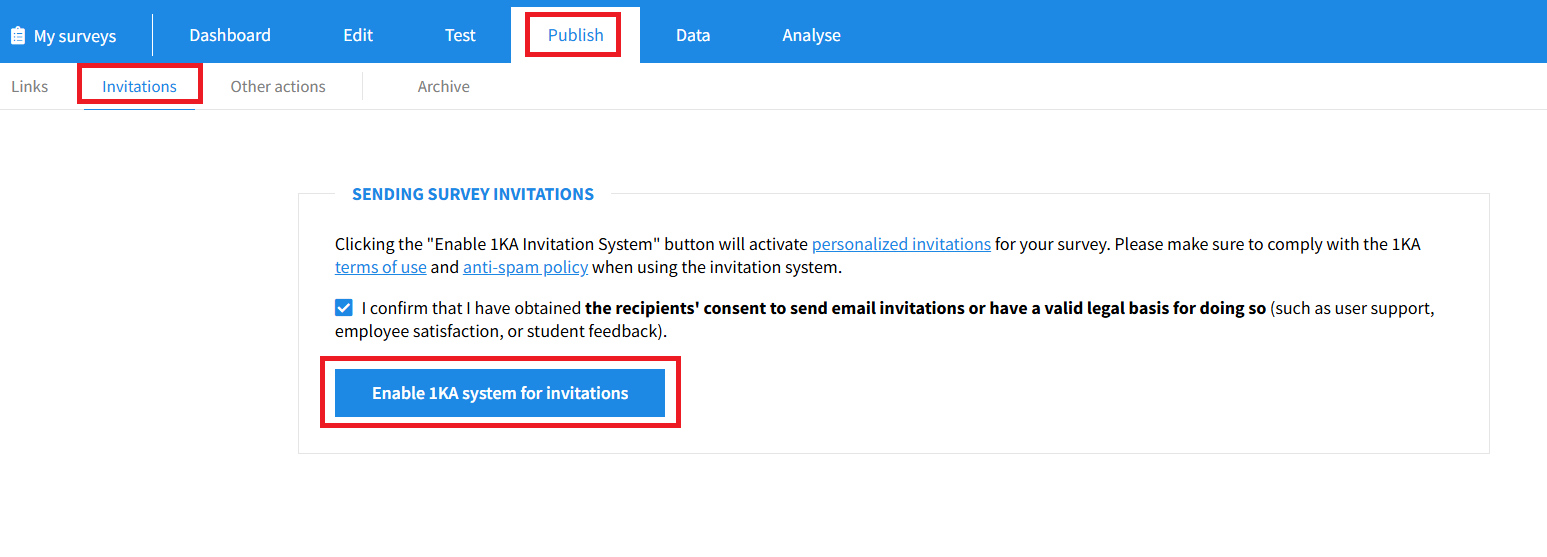
On 1KA.Arnes.si, there is a new, redesigned interface for sending email invitations. In the 'PUBLISH' - 'Invitations' tab, you must first activate the 1KA invitation system by clicking on the 'Enable 1KA system for invitations' button.
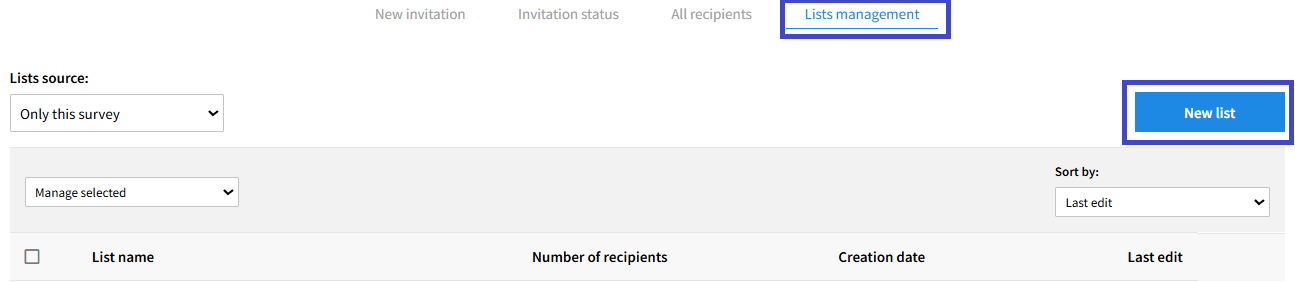
You can edit and add recipient lists in the 'Lists management' tab. By clicking on 'New list', you will be taken to the interface for creating a new list.
The functionality is available for users of the 3KA package for individuals, and for users of the business packages for groups.
Related content
Respondent Access Settings: Cookies, IP Addresses, Passwords, Registered User Recognition
In the 'EDIT' - 'Settings' - 'Respondents access' tab, you can set cookies, restrict access to the survey and set a password to access the survey.
1) Completion options
You can set cookies in the 'EDIT' - 'Settings' - 'Respondents access' - 'Completion options' tab. A 'cookie' is a code that is placed on the respondent's computer by a server (e.g. 1KA), so that 1KA can identify the respondent when they try to complete the survey again. You can specify the cookie storage duration. Select the option 'The same respondent can complete the survey only once' under the 'Multiple responses:
- 'Until the end of the browser session', where the cookie will be deleted as soon as the respondent closes their browser (Internet Explorer, Mozilla Firefox, Opera, etc.); therefore, if the respondent comes back within the same session, they can make further corrections. Caution: if a second respondent enters in the same session after the first respondent, the cookie will still be saved from the first respondent, which will cause issues with the survey!;
- 'For 1 hour' means that the cookie will be deleted after one hour from the first time the respondent clicked on the survey URL. The same warning as above (browser session) applies;
- 'For 1 month', the cookie will be deleted one month after the respondent first clicked on the survey. The same warning as above (browser session) applies.
Under the option 'Retaking the survey' you can also change where the respondent starts the survey when they return to the survey:
- Starts from the beginning, with the respondent seeing the answers they have already given;
- Starts at the last submitted page, i.e. returns to the page where they left the survey.
You can also allow a user who has already completed your survey (a user who has completed the survey) to edit their answers afterwards, but this means that the data and analyses will also change, so in most (but not all) cases, it is better to choose that respondents can not edit their answers.
Regardless of the cookies (whether the option "until the end of the questionnaire", "until the end of the browser session", "for 1 hour" or "for 1 month" is selected), you can also specify what the respondent's options are while they are answering the survey ('Editing responses after survey completion'):
- Can subsequently edit their answers: when they return to the previous page, they can change their answers. These then overwrite the previously entered values in the database when clicking on 'Next page'.
- Cannot subsequently edit their answers: even if they click on 'Previous page' or on the 'Back' button in the browser, they can only see their answers but cannot change them.
2) IP recognition (IP address restrictions)
To prevent the same person from answering your questionnaire multiple times, you also have the option of blocking the IP address of the device from which the respondent is accessing the survey. You can do that in the 'EDIT' - 'Settings' - 'Respondents access' - 'IP recognition' tab. You can block it for 10 minutes, 20 minutes, 60 minutes, 12 hours or 24 hours. However, this means that you can unintentionally also block another person using the same computer from answering the survey. It only makes sense in rare cases, e.g. voting, where there is a risk that someone is submitting multiple responses with a bot or a script. Of course, respondents can also circumvent IP restrictions by using virtual IP addresses. In general, however, this is a risky option which does not solve the problem of duplicate responses, but generates the risk of preventing a large number of relevant users from completing the survey, as often whole organisations or departments have the same IP address, for which there are many computers and potential respondents. More >>
3) 1KA recognition
1KA also enables the recognition of respondents who are registered 1KA users, but they must be logged in to the 1KA installation while completing the survey. In the tab 'EDIT' - 'Settings' - 'Respondents access' - '1KA recognition' you have two options:
- 1KA recognises the user as a respondent, i.e. a person (logged in to the 1KA installation) who answers your survey. This setting is suitable for internal administrative processes, e.g. when members of a collective fill in some data (e.g. address, contact) and can always correct their answers;
- 1KA recognises the user as a person entering other respondent's answers (data input), i.e. an interviewer entering answers, for which 1K provides the appropriate interface adjustments. This option is particularly useful in the case of mass entries, or when a field survey is carried out and then interviewers enter the collected answers, to see who has entered which answers. The same applies to telephone surveys.
The above two cases are rare; the default option is of course that 1KA does not recognise the user of the 1KA installation. Turning this option on can have serious consequences. If the 'Yes, as data input' option is enabled, the user has additional settings available for Questionnaire Entry.
4) Access with password (password to access the survey)
Access to the survey can best be restricted via a password in the 'EDIT' - 'Settings' - 'Respondents access' - 'Access with password' tab. You can generate multiple passwords and thus create groups of respondents that can be separated in analyses or used as a basis for IF conditions. In this case, the password serves as a safeguard to ensure that only those you want to complete the survey do so. A single password can be created for all respondents, or a password for each respondent. If you want to enter several passwords at once, select the 'Password mass insert' option. The use of passwords is only available for users of the 2KA and 3KA packages for individuals, and for users of the business packages for groups
In the 'PUBLISH' - Invitations' tab, you can also set up personalised codes to access the survey, via the email invitation interface available to users of the 3KA package for individuals, and users of the business packages for groups. Usually this code is then used in the email invitation, preferably automatically (in the survey URL) so that it does not need to be entered by the respondent. Alternatively, we may ask the respondent to enter the code manually. Similarly, the code can be sent in other ways, e.g. in a letter, and the respondents can type it in. The generation and use of individual codes is described here.
The use of passwords is in principle stronger and overrides the other settings for respondent access restriction (cookie, IP number, registered user identification), but interference may occur, so we strongly recommend to use only one of the above mentioned ways to identify respondents: cookie, IP number, registered user identification or individual password.
Some of the functionalities described are only available for users of the 2KA and 3KA packages for individuals, and for users of the business packages for groups.
Related content
Granting Survey Access to 1KA Helpdesk
Protecting user data is one of 1KA's top priorities. Access to data is limited to the author (editor) of the survey and additional co-editors, which are added by the author of the survey.
1KA's helpdesk and the website administrator of www.1KA.si do not have access to surveys and data without the explicit consent of the user.
In case the user requires assistance from 1KA’s administrators, the user must grant temporary access to 1KA's helpdesk (until the issue is resolved). Despite granted access, administrators are still committed to the highest standards of privacy protection, as defined in the Terms of Use.
Each survey has an icon in the top left corner which enables you to grant access to 1KA's helpdesk and administrators. You have to click 'Grant access to help centre'.
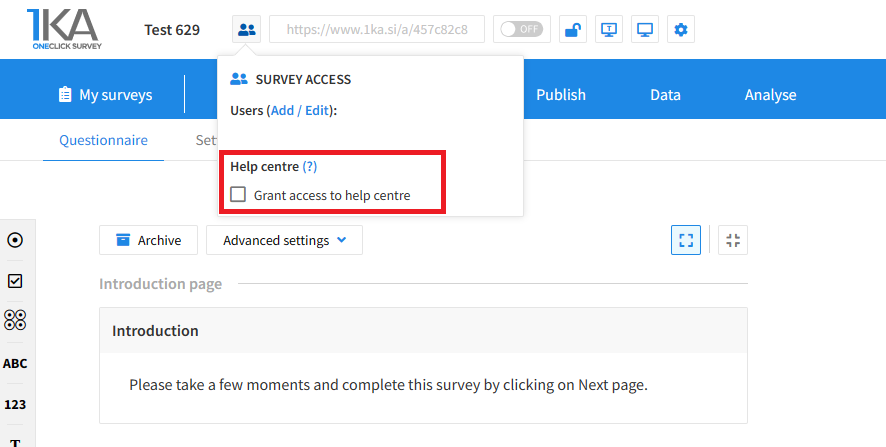
The author can add co-editors in the tab 'EDIT' – 'Settings' – 'Editor access'.
Related content
Copying the Survey
The video guide shows how to copy an existing survey in 1KA.
Each survey we previously created or have access to edit can be copied and reused to collect data.
Adding Additional Survey Editors
The video tutorial shows how to share a survey with other editors in 1KA.