User guide

Voting

The "Voting" survey type supports the process of anonymous voting. Voting is a one-question survey ("Categories - Single answer") which allows the immediate display of the statistics of the answers. In a "Voting" survey, there is only one question, so there is no testing and no test data entries. The data also can't be edited or deleted.

1. Voting survey creation

Voting can be created by clicking on the 'Create survey' option and selecting the 'Voting' survey type.

2. Editing the voting survey

By default, there is no introduction, the exit page is hidden, and there is a pre-set question with a single answer. Here you can enter the desired question and possible answers, as well as set additional voting preferences in the left-hand window.

3. Voting survey settings

  • You can choose if the voting will be an independent survey, which the respondents can access via an URL link, or if it will be embedded in a website.
  • You can also select the option of the respondents selecting their gender;
  • Within the 'Show intro / conclusion' section, you can set if the respondents see the intro and the exit pages;
  • A graphic representation of the answers can be configured in the 'Display statistic' section. The statistics can be shown to all respondents or to administrators only.

Additional settings are displayed by clicking on the 'More settings' option:

  • Survey duration or 'Survey start' and 'Survey end';
  • Theme (design) choice for the survey; if you want to embed the voting in a website, then select the 'Embed' theme from the drop-down list.

If you want to prevent a respondent from voting multiple times, you need to use the 1KA system for sending email invitations:

4. Sending voting invitations using the 1KA system

In the 'PUBLISH' - 'Invitations' tab, enable the 1KA system for invitations.

Set the Settings for Email Server. Then, choose the right General invitations settings:

  • Set the 'Personalized invitationst' to 'Yes';
  • Leave the 'Type of invitations' as the default 'Send emails' option
  • Leave the 'Code entry' as the default 'Automatically in the URL' option
  • Leave the 'Enable the access to the survey without individualized invitation code' as the default unchecked option
  • Click the 'Save' button

In the second step ('Add'), add the recipients: select the desired fields, and be sure to enter the email addresses. Then format the e-mail message, and send it.

In the third step ('View/Edit'), we can view the list of email addresses and whether the invitation was sent, as well as the respondent's survey status (non-answer, completed survey, ...).

5. Voting results

Voting results can be viewed in the 'ANALYSE' - 'Statistics' tab or, you want a graphical display of results, in the 'ANALYSE' - 'Graphs' tabs.

Related content

Classic Table (Question Type)

This question type is the most convenient way to display questions where different topics have the same possible answers.

This question type allows the respondents to choose one criteria in the head of the column, on the basis of which they then evaluate the items or topics that are located in rows on the left side of the table.

An example of such a question could be satisfaction with a website. For example, the developers of a website can use a single question to gain insight into user satisfaction with the design, usability, speed, etc. To achieve the same effect without this question type, three individual questions of the 'Categories - Single Answer' type would be needed instead, which would complicate the creation of the questionnaire and the subsequent analysis of the data.


Related content

Categories - Multiple Answers (Question Type)

In the 'Categories - Multiple answers' question type, respondents are given the option to select one or more answers from a number of possible answers (categories).

It is also advisable to consider the possibility that we have not provided all possible answers and, if necessary, to add an 'Other' category to the question (semi-open question type). This allows the respondent to write in their own answer if they do not identify with any of the predefined categories. In this case, the analysis can be a bit more complex as the descriptive answers have to be recoded (e.g. 'apple', 'apple' and 'apples' recoded to the same value).

For this question type, you can choose from the following layouts:

  • Vertical
  • Horizontal beside question
  • Horizontally below question
Related content

Categories - One Answer (Drop-Down Menu) (Question Type)

By using the 'Categories - one answer (Dropdown)' question type, respondents are given the option to choose one answer from a number of possible answers (categories). The answers are presented as a drop-down list instead of buttons. It is advisable to consider the possibility that we have not foreseen all possible answers, and to add an 'Other' category to the question if necessary, but for this question type, it is not possible for the 'Other' answer to be a semi-open type where respondents could write their own answers.

Related content

Registration Form

A registration form is a type of survey that incorporates one or more variables. You can include only an email address, or it can incorporate other variables in which you are interested.

You can create a registration form by clicking the 'Create survey' option. A new window will appear, where you can enter the name of the registration form, select the 'Form' questionnaire type, and click 'Next'.

Variables can be added in two ways:

1. Insert the desired question types and edit them. If you want to have the variables 'name' and 'email', first select the 'Text' question type and write 'Name' into the text question. For the email, navigate the mouse to the menu on the left and click 'Add question' , where all the available question types are listed. Under the category 'Standard input', select the 'E-mail' option.

  • If you wish to use the two variables later in notifications, you must define them as system variables. This can be done in the individual question editor, in the 'Advanced' tab, where you select the category 'System variable';
  • You should also rename the variables in the same tab, under the category 'Variable'; enter 'Name' under 'Variable name' for the first variable, and 'Email' under 'Variable name' for the second variable, so that the system will automatically detect the variables for notifications.

2. To the right of the question editor, you will find the option of Alerts from responses quick settings, where you select the recipients of the notifications. You can choose between the authors of the survey, additional recipients and respondents.

If you select a respondent, the variable 'E-mail' is entered into the form, which is by default a system variable and can be used for notifications without further settings.

You can add the other variables in the same way as with a standard survey. If you wish to use them in notifications, you must define them as system variables.

Notifications are only available to users with 2KA and 3KA payable package

System variables

Each variable that you wish to include in the notification message must be defined as a system variable. In the question editor of each question, in the 'Advanced' tab, you can select the option 'System variable'.

Enter #variable_name# into the notification message.

Example: The participants must select a date in the registration form. The date variable is named Q1 in the question editor. you should enter in the message, for example: “you have chosen the date #Q1# for the workshop.”

If the registration form is to be embedded on a website, we recommend that you select the 'Embed' design, which can be selected in the 'EDIT' – 'Design' tab.

Insight into the registration database

The 1KA system enables you a quick insight into the registration database. If you are a 3KA private package user you can also create a URL link to the database and forward it to selected individuals. The list can also be exported in PDF, MS Word and Excel formats, as well as printed if you are a user with 2KA or 3KA payable package user.


Some of the functionalities described are only available for users of the 2KA and 3KA packages for individuals, and for users of the business packages for groups.


Related content

Double Grid Table (Question Type)

This question type allows respondents to select two criteria, located in the head of the table, against which respondents rate the items or topics located on the left-hand side in table rows. A double table is the most convenient way to display questions where different topics have the same possible answers.

An example of such a question could be satisfaction with a website. For example, we can get an insight into user satisfaction with design and usability for several different websites at the same time.

Related content

Granting Survey Access to 1KA Helpdesk

Protecting user data is one of 1KA's top priorities. Access to data is limited to the author (editor) of the survey and additional co-editors, which are added by the author of the survey.

1KA's helpdesk and the website administrator of www.1KA.si do not have access to surveys and data without the explicit consent of the user.

In case the user requires assistance from 1KA’s administrators, the user must grant temporary access to 1KA's helpdesk (until the issue is resolved). Despite granted access, administrators are still committed to the highest standards of privacy protection, as defined in the Terms of Use.

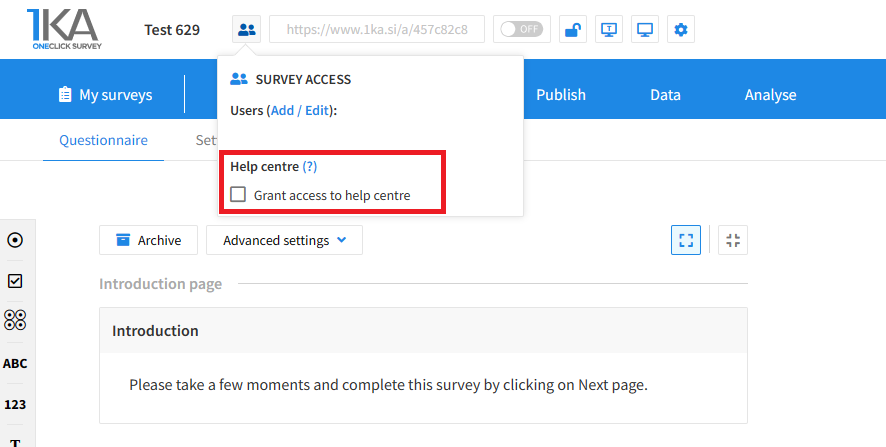
Each survey has an icon in the top left corner which enables you to grant access to 1KA's helpdesk and administrators. You have to click 'Grant access to help centre'.

Grant access to help centre
 

The author can add co-editors in the tab 'EDIT' – 'Settings' – 'Editor access'.

Related content

1KA is free to use for basic users