Izvoz

Settings for exporting PDF/RTF files with answers

The complete survey as well as a printout of the respondents' answers can be exported from the 1KA tool in PDF or RTF format. The PDF option can also be used in the conclusion of the survey, where each respondent can export their answers, or you can set up notifications for survey completion, where each respondent is provided with a link to their a PDF of their answers.

In the 'EDIT' - 'Settings' - 'PDF/RTF export' tab, you can set the individual printouts.

For the survey printout, you can set whether the numbering of the questions is displayed, whether the IF conditions are displayed and whether the introduction is displayed.

When printing out the answers of the respondents, you can set whether a short or an expanded layout is used. You can set the numbering of the questions, the display of the recnum (sequence number of the respondent) and the display of the IF conditions. You can set that questions and sub-questions that do not contain answers are not displayed. If you want to export answers for multiple respondents at once, you can set each respondent to be displayed on a new page.

If you are not satisfied with the PDF output of the questionnaire or the respondent's answers, we recommend exporting to RTF format, which can be reformatted as you wish.


The functionality is available for users of the 2KA and 3KA packages for individuals, and for users of the business packages for groups.


Export to Excel

You can export data to Excel in the 'DATA' - 'Export' - 'CSV' tab or the 'DATA' - 'Export' - 'EXCEL (XLS)' tab.

You can download the Excel file to your computer by clicking on the 'CSV file export' or 'Export to Excel' options.

When exporting to Excel XLS, two tabs will open in Excel. The first tab displays the data as response values, while the second tab displays the response labels.

As with other exports, you can filter the data in the top right corner according to variables, statuses, conditions or time period. You can also enable the export of paradata, identifiers, and system variables

In the top right corner, you can also find the settings, where you can further specify whether you want to export only system data, only data or data and paradata. When you select "Export only system data", only the system data (identifiers) of the respondents will be exported, without any other data. However, if you choose not to export the system data, you can then export the individual paradata of the respondent.


The functionality is available for users of the 2KA and 3KA packages for individuals, and for users of the business packages for groups.


Related content

Export to Text File

You can export data to a text file in the 'DATA' - 'Export' - 'Text file' tab, where data can be exported in a text ASCII file with a single click.

As with other exports, you can filter the data in the top right corner according to variables, statuses, conditions or time period. You can also enable the export of paradata, identifiers, and system variables

In the top right corner, you can also find the settings, where you can further specify whether you want to export only system data, only data or data and paradata. When you select "Export only system data", only the system data (identifiers) of the respondents will be exported, without any other data. However, if you choose not to export the system data, you can then export the individual paradata of the respondent.


The functionality is available for users of the 2KA and 3KA packages for individuals, and for users of the business packages for groups.


Related content


Export to SPSS

The 'DATA' - 'Export' tab also allows for export to SPSS. There are two export options available: SPSS SYNTAX and SPSS SAV.


SPSS SYNTAX Export

Available under 'DATA' - 'Export' - 'SPSS SYNTAX'. In this case, you need to follow the five (5) steps described in the export procedure.

As 1KA does not use the SPSS API, minor adjustments need to be made to the syntax. For some older versions of SPSS, issues may arise, so we recommend checking the FAQ 'I have problems exporting to SPSS SYNTAX' for solutions.

In case of any complications (e.g., with complex surveys with loops, older versions of SPSS), we recommend first exporting to Excel and then importing into SPSS. However, you will need to define the variables yourself in this case.

As with other exports, you can filter the data in the top right corner according to variables, statuses, conditions or time period. You can also enable the export of paradata, identifiers, and system variables

In the top right corner, you can also find the settings, where you can further specify whether you want to export only system data, only data or data and paradata. When you select "Export only system data", only the system data (identifiers) of the respondents will be exported, without any other data. However, if you choose not to export the system data, you can then export the individual paradata of the respondent.


SPSS SAV

In addition to syntax export, direct export to the SPSS SAV file format is also available under 'DATA' - 'Export' - 'SPSS SAV'. This option allows easier and faster data transfer to SPSS without the need for additional syntax adjustments.  An SPSS database will be generated automatically.


The functionality is available for users of the 2KA and 3KA packages for individuals, and for users of the business packages for groups.


Related content


Granting Survey Access to 1KA Helpdesk

Protecting user data is one of 1KA's top priorities. Access to data is limited to the author (editor) of the survey and additional co-editors, which are added by the author of the survey.

1KA's helpdesk and the website administrator of www.1KA.si do not have access to surveys and data without the explicit consent of the user.

In case the user requires assistance from 1KA’s administrators, the user must grant temporary access to 1KA's helpdesk (until the issue is resolved). Despite granted access, administrators are still committed to the highest standards of privacy protection, as defined in the Terms of Use.

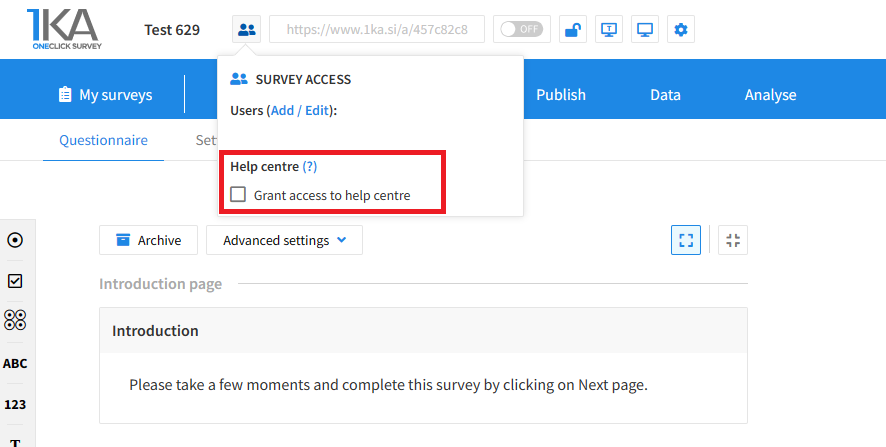
Each survey has an icon in the top left corner which enables you to grant access to 1KA's helpdesk and administrators. You have to click 'Grant access to help centre'.

Grant access to help centre
 

The author can add co-editors in the tab 'EDIT' – 'Settings' – 'Editor access'.

Related content

1KA is free to use for basic users