

Uvoz

Merging Data

In the 'DATA' – Import' – 'Merge data' tab, you can merge data from different sources based on a common key.

Of course, the key must be different between the units - different units must not have the same key. For data merging, it is essential that the 1KA file has the same key (identifier) as the additional file, e.g. sequence number, code, email, phone, etc.

Example: the Q1 variable in the 1KA database contains names of respondents and you wish to add e-mail address (E-MAIL) and age (AGE) for each respondent. In the 'EDIT' - 'Questionnaire' tab, you can create two new variables (for the e-mail address and age) and then go the 'DATA' – 'Import' – 'Merge data' tab, where you can choose all three fields: Q1, E-MAIL, AGE. Each unit has to be in its own row and variables have to be separated with a comma.

It is important to maintain the order of the variables, which can be determined by moving the fields around.

It is very important to mark the Q1 variable as the key in this example. The system will then add the email address and age from the additional file (e.g. Ana, ana.novak@1ka.si, 33) to the units in addition to the names (Q1) already in the 1KA database.

You can also export the e-mail addresses and names from an external file (Excel).

Please pay attention! If you are using a loop functionality or have activated the advanced Social Networks module, we advise against using the merge or add data function, as the data will be imported incompletely or incorrectly.


The functionality is available for users of the 3KA package for individuals, and for users of the business packages for groups.

Related content

Granting Survey Access to 1KA Helpdesk

Protecting user data is one of 1KA's top priorities. Access to data is limited to the author (editor) of the survey and additional co-editors, which are added by the author of the survey.

1KA's helpdesk and the website administrator of www.1KA.si do not have access to surveys and data without the explicit consent of the user.

In case the user requires assistance from 1KA’s administrators, the user must grant temporary access to 1KA's helpdesk (until the issue is resolved). Despite granted access, administrators are still committed to the highest standards of privacy protection, as defined in the Terms of Use.

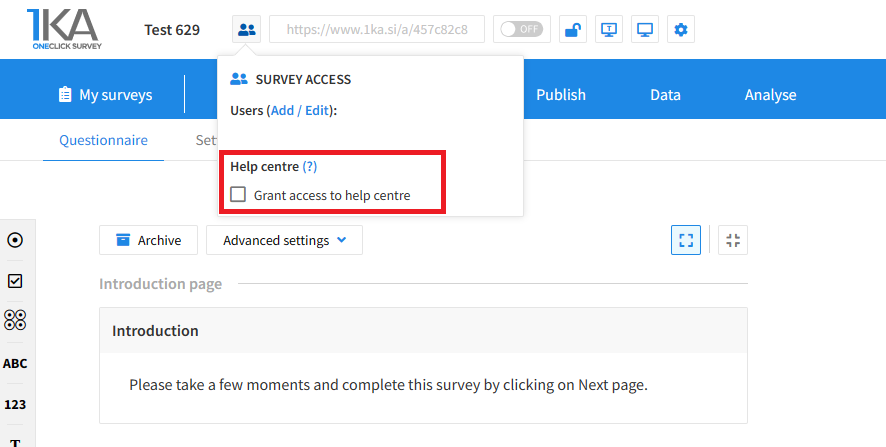
Each survey has an icon in the top left corner which enables you to grant access to 1KA's helpdesk and administrators. You have to click 'Grant access to help centre'.

Grant access to help centre
 

The author can add co-editors in the tab 'EDIT' – 'Settings' – 'Editor access'.

Related content

Adding Data (Append)

If you have carried out a survey using face-to-face field surveying or online surveying in other tools (i.e. not via the 1KA web survey) and you wish to merge your survey data, you can add the external data to the 1KA data in the 'DATA' – 'Import' – 'Add data' tab.

If the variable does not exist yet, you must first create a new question of the appropriate type in the 'EDIT' - 'Questionnaire' tab and then insert the additional data into the list. You must separate each unit (row) of an individual variable with a comma. You can also import additional data from a file (e.g. Excel). It is important that the variables are listed in the correct order.

With the 'radio button' type of variables (single answer), you should first check which answer values you have in the survey, and then add data as numerical values. For example, if the available answers are: "apple", "banana", "pineapple", their successive numerical values are 1, 2, 3, and have to be entered in such a way as data.

On the other hand, if you have the 'checkbox' type of variables (multiple answers), check what values the answers have (e.g. Q2a, Q2b, ...) and insert the data into the database in such a way. Since there are multiple answers available, you need to be careful not to separate them with a comma but rather with a space. If you separate them with a comma, the system will identify that as an answer to another variable.

Please pay attention! If you are using a loop functionality or have activated the advanced Social Networks module, we advise against using the merge or add data function, as the data will be imported incompletely or incorrectly.

Example

For an exercise, you can use the prepared survey in the Public library tab (Survey library - 1KA examples of questionnaires - 1KA questionnaires - Example of adding data) and copy it (by clicking the 'Copy survey' on the right side of the screen). Once you have a survey, you also need a data file, which you can download to your computer HERE.

Open this file and delete the first row with the names of the variables - that is intended only to remind you that the columns in Excel must be sorted in the same way as the 1KA questions. After deleting the first line, save the file, and then follow the instructions/steps to add data in the 'DATA' – 'Import' – 'Add data' tab.


The functionality is available for users of the 3KA package for individuals, and for users of the business packages for groups.


Related content

1KA is free to use for basic users


