

 Google Sign In

Pregledovanje
How to See Respondents' Answers in a Questionnaire Format (Rather Than in a Table)
Individual respondents' answers can be viewed in a condensed 'view' (like a completed survey) in the 'DATA' – 'Browse' tab by clicking on the icon in front of the respondent's row:

Related content
- Browse
- Video guide: Browsing and Editing Data
Measurement and Time Limitations for Responses
For each variable, you can limit the time available for entering a response. This can be done in the 'Advanced' tab in the question settings (in the 'EDIT' – 'Questionnaire' tab), where you can select 'Time limit for answering (Timer)' and set the display time for that question. Only one timer can be set for each page. When the time is up, the survey will be redirected to the next page automatically, regardless of whether there are other questions that do not have a timer on the previous page. We therefore recommend that if a timer is set, you add a page break after each question.
Pending the next application update, it is currently not possible to utilize the timer feature in cases where the timed page is followed by a page with a question that's not visible to all respondents (eg. due to group randomization or other IF conditions). Depending on the individual survey design and methodological needs, consecutive timed pages with separate conditions may instead be interspersed with pages visible to all respondents (in cases where question order is not imperative), or all timed questions within conditions can be grouped on one page (in cases where each respondent is only shown one question out of a pool of multiple questions).
If you wish to measure the answering time for each question, you must also create a separate page for each question, since time is only measured for each page. You can enable paradata in the 'DATA' – 'Browse' tab ('+ Show columns' - 'Respondent paradata') to record, in addition to the survey data, the date and time at which the respondent arrived at a particular page of the questionnaire.
In the table with the respondent units, we then have the date and exact time of completion according to the individual pages of the survey:
- Date:
- Begin: the exact date and time (hours, minutes and seconds) when the respondent opened the survey page (click on the URL of the link to open the survey);
- End: The last time the respondent was active on the survey, excluding the outro page;
- Page 1: date_1: Exact time when the respondent clicked on the "Next page" button on page 1;
- Page 2: date_2: Exact time when the respondent clicked on "Next page" button on page 2;
- Page n: date_n (n = number of pages): Exact time when the respondent clicked on the "Last page" button on page n;
- The time of the outro page (end of the survey) is not visible.
The average page times are listed in the 'TEST' - 'Duration' - 'Actual time'.
Public URL to View Data and Analysis
1KA allows you to create a public URL to view data and analysis. Functionality is used in application forms, voting or other short surveys.
In the 'DATA' and 'ANALYSE' tabs, there is an export icon on the top right. Select 'Public link' and 'Add new link'. 1KA generates a URL to access the database, which you can share with anyone. This way, you can keep up with the responses from respondents or new applications. To generate a public link to the analysis, the process is the same as for data.
More options for setting up a public URL:
- Access password: You can specify a password that the recipients must enter to see the data or analysis. If you leave the password field blank, then everyone who receives a link will be able to access it without a password.
- Refresh every 15 seconds: You can set the public URL to be automatically refreshed every 15 seconds. This means that the page is reloaded every 15 seconds, thus always displaying up-to-date data. This is especially suitable for various presentations, monitoring of live voting, etc. If you do not choose this option, you need to manually reload the page to refresh the data.
Public links can be deleted by clicking on the icon on the far left - 'Delete link' in the 'Public links to data' window.
Examples:
The functionality is available for users of the 2KA and 3KA packages for individuals, and for users of the business packages for groups.
Related content
Survey Data, Paradata, Identifiers and System Variables
In the 'DATA' - 'Browse' tab, the following data for valid units is displayed by default: status, status details and respondents' answers.
Status
- Status: the final status of the units.
Status details
- Empty: shows if the questionnaire is empty (the respondent merely clicked through the survey without answering);
- Recnum: consecutive record (entry) number;
- Date: date on which the survey was filled out.
Respondents' answers
- Respondents' answers (survey data) for valid units.
If you want to see the actual responses in addition to the numerical values of the responses, click on 'Show columns' and tick the 'Response labels' option.
Additional data
If the option 'All units' is selected when browsing the data, or if some units have an email invitation, the following field will automatically appear:
- Relevance: shows whether an individual unit is valid, where units with statuses 5 and 6 (i.e. fully or partially completed questionnaires) are considered as valid.
In special cases, you can also enable the display of the following information by selecting the relevant check boxes in 'Show columns':
- Record number, which is generated automatically;
- Quick view survey: shortcut for viewing an individual respondent's survey answers on one page.
If you have used automatic test entries, the 'Test' column will also automatically appear when viewing the data, indicating whether the unit is a test entry.
Paradata
Paradata is only available for users of the 2KA and 3KA packages for individuals, and for users of the business packages for groups. By selecting 'Respondent paradata' under 'Show columns', the following information is displayed:
- Date begin: exact date and time (hours, minutes and seconds) when the respondent arrived at the survey homepage (click on the URL of the link to complete the survey);
- Date end: last time the respondent was active on the survey, excluding the final page;
- Page 1: exact time when the respondent clicked on "Next page" on page 1;
- Page 2: exact time when the respondent clicked on "Next page" on page 2;
- Page n: exact time when the respondent clicked on "Last page" on the n-th page of the survey, where n = the total number of pages in the survey, excluding the outro page;
- Browser used by the respondent;
- Browser version used by the respondent;
- Operating system used by the respondent;
- Device used by the respondent (PC, phone, tablet);
- Referrer: the website from which the respondent accessed the survey (redirect);
- Language: the language in which the respondent answered the survey (in the case of multilingual surveys).
The paradata is shown in the data table on the right (the last columns of the table). If some of the data isn't visible, select the 'All' option from the 'Questions per page' dropdown above the data table on the right hand side.
You can turn off the recording and display of paradata in the 'EDIT' - 'Settings' - 'Paradata' tab, and then no paradata will be recorded in 1KA - not even the timing (response dates) for individual pages. You can turn off the recording of the respondent's browser, the respondent's referrer (redirects) and the dates of answering the questions. More >>
Identifiers
Identifiers are data imported and edited in the 'PUBLISH' - 'Invitations' tab, which is only available to users of the 3KA package for individuals, and for users of the business packages for groups.
Identifiers usually include the name, last name, email, address, etc. For privacy reasons, this information cannot be displayed at the same time as the survey data in surveys, but is displayed separately. With the prior consent of the participants, a common overview, analysis and export is only possible in the Form survey type (one-page survey), where we usually collect registration data, but not survey opinions.
Identifiers are among the system variables that can be used (called) in email communication, i.e. in notifications and sending email invitations. At the same time identifiers allow the identification of each unit. Of course, when editing the questionnaire, in addition to the identifiers, any variable can be marked as a system variable (when editing a question, select the 'Advanced' tab and choose the 'System Variable' option), which allows its use in email communication.
It is not possible to display respondents' IP numbers in the data, as we do not track them and record them separately from the survey data, as defined in our Privacy Policy.
Some of the functionalities described are only available for users of the 2KA and 3KA packages for individuals, and for users of the business packages for groups.
Related content
Calculations
You can calculate a new variable in the 'DATA' – 'Computations' - 'Calculations' tab. When you click 'Add new calculation', a new variable is generated in the questionnaire, as well as in the data.
This option can be used if, for example, you wish to calculate the age of the respondent by using their year of birth. In this case, you can add a new calculation and subtract the 'Year of birth' variable from the current year.
The calculated values are fully equivalent to the Calculations option in the 'EDIT' - 'Questionnaire' tab.
The functionality is available for users of the 3KA package for individuals, and for users of the business packages for groups.
Related content
- Video guide: Calculations
Automatic Coding
Automatic coding for open-ended questions can be activated in the 'DATA' – 'Computations' – 'Automatic coding' tab. Select a text variable you wish to automatically code from the dropdown menu and click the 'Run' button.
Automatic coding is suitable for short answers, where words or word roots are frequently repeated. The application identifies individual word roots and groups them into a common value. You can code the answers into a new variable with one or more possible answers. When coding multiple values per answer (i.e. in a multiple-choice variable), a comma is used as a delimiter (separator). Automatic coding is not recommended for questions with long open-ended answers.
Automatically coded variables can later be altered manually in the 'DATA' - 'Computations' - Manual coding' tab.
The functionality is available for users of the 3KA package for individuals, and for users of the business packages for groups.
Related content
Granting Survey Access to 1KA Helpdesk
Protecting user data is one of 1KA's top priorities. Access to data is limited to the author (editor) of the survey and additional co-editors, which are added by the author of the survey.
1KA's helpdesk and the website administrator of www.1KA.si do not have access to surveys and data without the explicit consent of the user.
In case the user requires assistance from 1KA’s administrators, the user must grant temporary access to 1KA's helpdesk (until the issue is resolved). Despite granted access, administrators are still committed to the highest standards of privacy protection, as defined in the Terms of Use.
Each survey has an icon in the top left corner which enables you to grant access to 1KA's helpdesk and administrators. You have to click 'Grant access to help centre'.
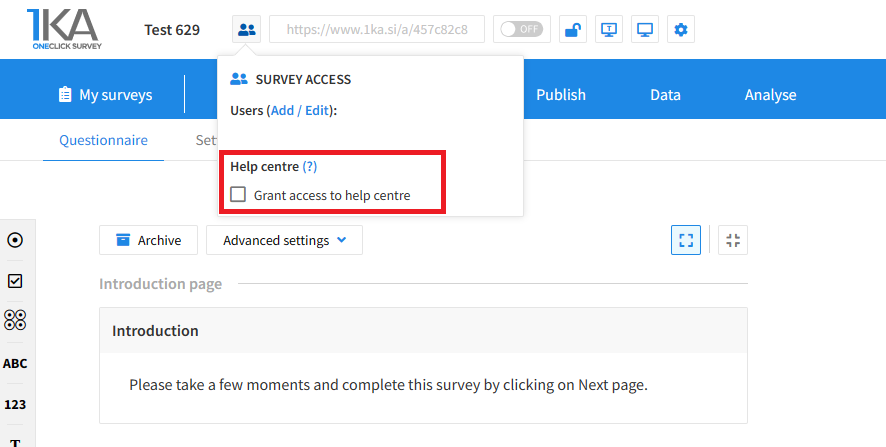
The author can add co-editors in the tab 'EDIT' – 'Settings' – 'Editor access'.
Related content
Exporting Questionnaire and Data to PDF and Word
The video guide shows how to use the 1KA application to export the questionnaire and respondents’ answers to PDF or Word, and how to change the PDF and Word export settings.




