

 Google Sign In

Introduction to 1KA
Granting Survey Access to 1KA Helpdesk
Protecting user data is one of 1KA's top priorities. Access to data is limited to the author (editor) of the survey and additional co-editors, which are added by the author of the survey.
1KA's helpdesk and the website administrator of www.1KA.si do not have access to surveys and data without the explicit consent of the user.
In case the user requires assistance from 1KA’s administrators, the user must grant temporary access to 1KA's helpdesk (until the issue is resolved). Despite granted access, administrators are still committed to the highest standards of privacy protection, as defined in the Terms of Use.
Each survey has an icon in the top left corner which enables you to grant access to 1KA's helpdesk and administrators. You have to click 'Grant access to help centre'.
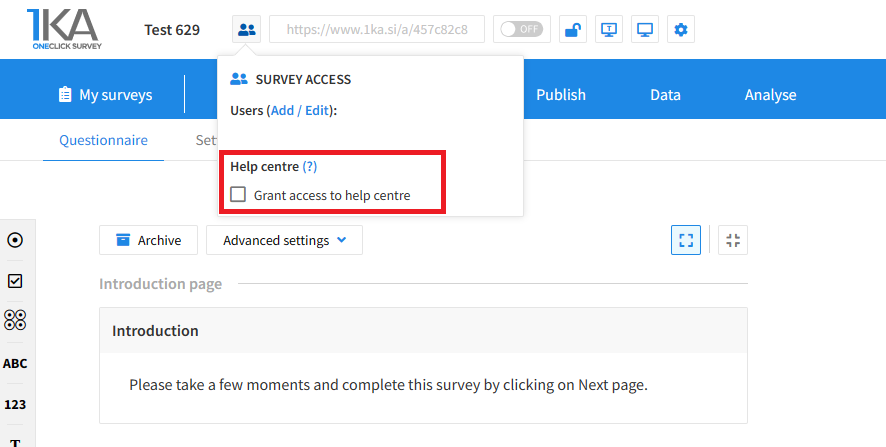
The author can add co-editors in the tab 'EDIT' – 'Settings' – 'Editor access'.
Related content
Entering Completed Questionnaires From Field Surveying
The video guide shows how to enter the questionnaire data we collected through the field survey, in One Click Survey.
Adjusting Standard Buttons and Texts
The video guide shows how to change the captions on the default buttons such as Previous Page and Next Page in the One Click Survey application.
Random Groups of Respondents
The video guide shows how to divide the respondents into random subgroups in 1KA using the conditions (IF).
Separating Groups of Respondents by Creating Passwords and URL Addresses
The video tutorial shows how to separate groups of respondents in 1KA.
- By creating different passwords.
- By creating different survey URLs.
Survey Theme
The video tutorial shows how to customize the survey theme in 1KA.
Tables
The video guide shows how to add and adjust different table types in 1KA.
Blocks and Randomization
The video guide shows how to structure the questionnaire into blocks and how to randomize blocks and questions in One Click Survey.




