

 Google Sign In

Uporabniki
Enabling Two-Factor Authentication in 1KA
You can enable two-factor authentication to log in to 1KA, which means that upon logging in, you will also need to enter a special code that is obtained through a separate code-generating application.
To set up two-factor authentication, follow these steps:
- Log in to 1KA and click on your username in the upper right corner, then click on 'Edit profile'.
- At the bottom of the settings, make sure the box next to the "Two-factor authentication" option is checked.
- Download the Google Authenticator app (Google Play for Android or App Store for iOS) on your smartphone.
- Use the Google authenticator application to scan the QR code or manually enter the code that appears here in your authenticator.
- Once you save the settings, this code will no longer be available as the code is constantly changing.
- While two-factor authentication is turned on, you must always enter your 1KA password and code from the authenticator application when signing in.
- To turn off the two-factor authentication, you must also enter the code obtained from the Google Authenticator application.
Related content
- Video guide: Two-Factor Authentication
Granting Survey Access to 1KA Helpdesk
Protecting user data is one of 1KA's top priorities. Access to data is limited to the author (editor) of the survey and additional co-editors, which are added by the author of the survey.
1KA's helpdesk and the website administrator of www.1KA.si do not have access to surveys and data without the explicit consent of the user.
In case the user requires assistance from 1KA’s administrators, the user must grant temporary access to 1KA's helpdesk (until the issue is resolved). Despite granted access, administrators are still committed to the highest standards of privacy protection, as defined in the Terms of Use.
Each survey has an icon in the top left corner which enables you to grant access to 1KA's helpdesk and administrators. You have to click 'Grant access to help centre'.
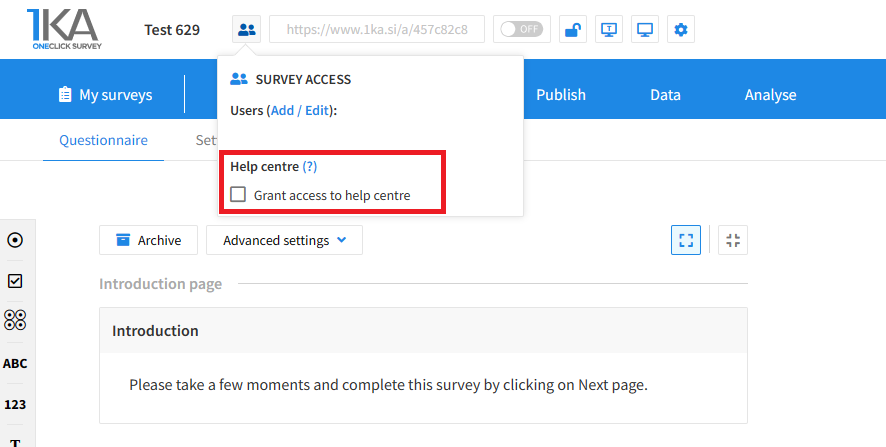
The author can add co-editors in the tab 'EDIT' – 'Settings' – 'Editor access'.
Related content
Exporting Questionnaire and Data to PDF and Word
The video guide shows how to use the 1KA application to export the questionnaire and respondents’ answers to PDF or Word, and how to change the PDF and Word export settings.
Copying the Survey
The video guide shows how to copy an existing survey in 1KA.
Each survey we previously created or have access to edit can be copied and reused to collect data.
Adding Additional Survey Editors
The video tutorial shows how to share a survey with other editors in 1KA.




